How Do Finance Professionals Use Excel Shortcuts on Mac?

Quick Answer: Financial modeling on Mac Excel works just as well as on Windows once you swap your Ctrl-based muscle memory for Cmd — the core modeling shortcuts (formula auditing, absolute references, formatting, navigation) all exist on Mac, they just live under Cmd, Fn+F-keys, or slightly different combos for things like Paste Special and AutoSum. Mac Excel Shortcuts app remaps Windows shortcuts, including Ctrl+Alt+V for Paste Special and the still-missing Remove Duplicates shortcut, to work as-typed on Mac.
User problem
You built years of speed in Excel on Windows. Then you switch to a Mac and suddenly a 3-statement model that used to take 20 minutes takes 45, because every third keystroke does the wrong thing. This isn't a Mac limitation — it's a shortcut-remapping problem, and it's fixable in a focused afternoon.
What this guide covers
A finance-specific shortcut workflow: formatting, formula, navigation, and audit shortcuts that come up constantly in DCF models, LBO models, three-statement models, and day-to-day reporting.
When to use this
Any time you're building or editing a financial model on Mac: initial model construction, sensitivity/scenario work, formatting for investor-ready output, or auditing someone else's model.
Prerequisites
Excel for Mac (365, 2021, or 2019)
System Settings → Keyboard → "Use F1, F2, etc. keys as standard function keys" turned ON
Familiarity with your firm's model formatting conventions
Method 1: Ribbon
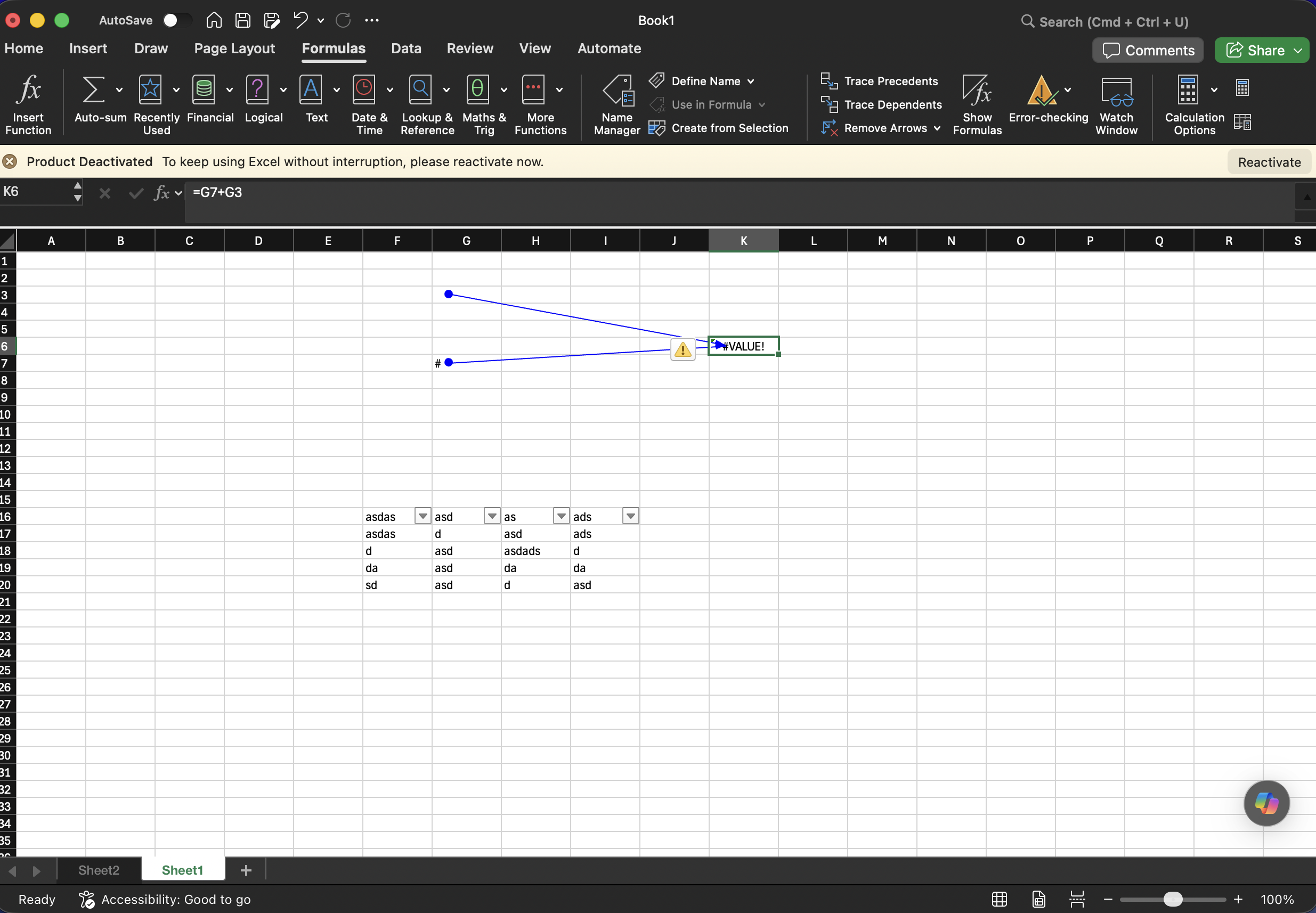
For less frequent actions, the ribbon is still the most discoverable path. Formulas tab has the formula auditing tools (Trace Precedents/Dependents) essential when reviewing a model you didn't build.
Method 2: Menus
Format → Cells (or Cmd+1) gets you the full number-format dialog for custom formats like $#,##0.0,,"M" — standard finance formatting that's faster to type once as a custom format.
Method 3: Native Keyboard Shortcuts
Toggle absolute/relative reference:
Fn+F4Format Cells dialog:
Cmd+1Bold (inputs formatting convention):
Cmd+BAutoSum:
Shift+Cmd+TFill Right / Fill Down:
Cmd+R/Cmd+DToggle formula view (audit mode):
Cmd+`Calculate workbook now:
Fn+F9Insert row (new line item):
Cmd+Shift+=Group rows/columns:
Shift+Cmd+KPaste Values Only:
Cmd+Ctrl+V→ Values
Method 4: Mouse Workflow
Right-click any cell for the context-menu version of Paste Special, Format Cells, and Insert. Click-and-drag the fill handle to extend formulas across projection periods without touching the keyboard at all.
Method 5: Maccove Workflow
If you're migrating a whole finance team from Windows laptops to Mac, Mac Excel Shortcuts app remaps Windows shortcuts — including F4 for absolute references, Ctrl+Alt+V for Paste Special, and Alt+= for AutoSum — to work as-typed on Mac.
Real-World Example
Building a quick sensitivity table for a DCF: flex the discount rate across five scenarios. On Mac: Fn+F4 to lock the WACC reference, Shift+Cmd+T for the subtotal, Cmd+Ctrl+V → Values for the sensitivity grid. Once "standard function keys" is enabled, the Fn requirement disappears and F4 works exactly like it did on Windows.
Common Mistakes
Forgetting to enable "standard function keys," then concluding F2/F4/F9 "don't work on Mac."
Assuming AutoSum is Alt+= on Mac — it's
Shift+Cmd+T.Pasting values with a plain Cmd+V and manually deleting formatting, instead of
Cmd+Ctrl+V→ Values Only.
FAQs
Are there any Mac-specific limitations for financial modeling compared to Windows?
No meaningful ones for standard modeling work — the differences are almost entirely in keyboard shortcuts, not underlying functionality.
Does Excel for Mac support the same add-ins my firm uses?
Most major financial data add-ins now support Mac Excel, but check feature parity with your specific vendor.