What Are the Best Mac Excel Tips for Finance Professionals?
Quick Answer: The fastest wins for finance pros switching to Mac Excel: relearn
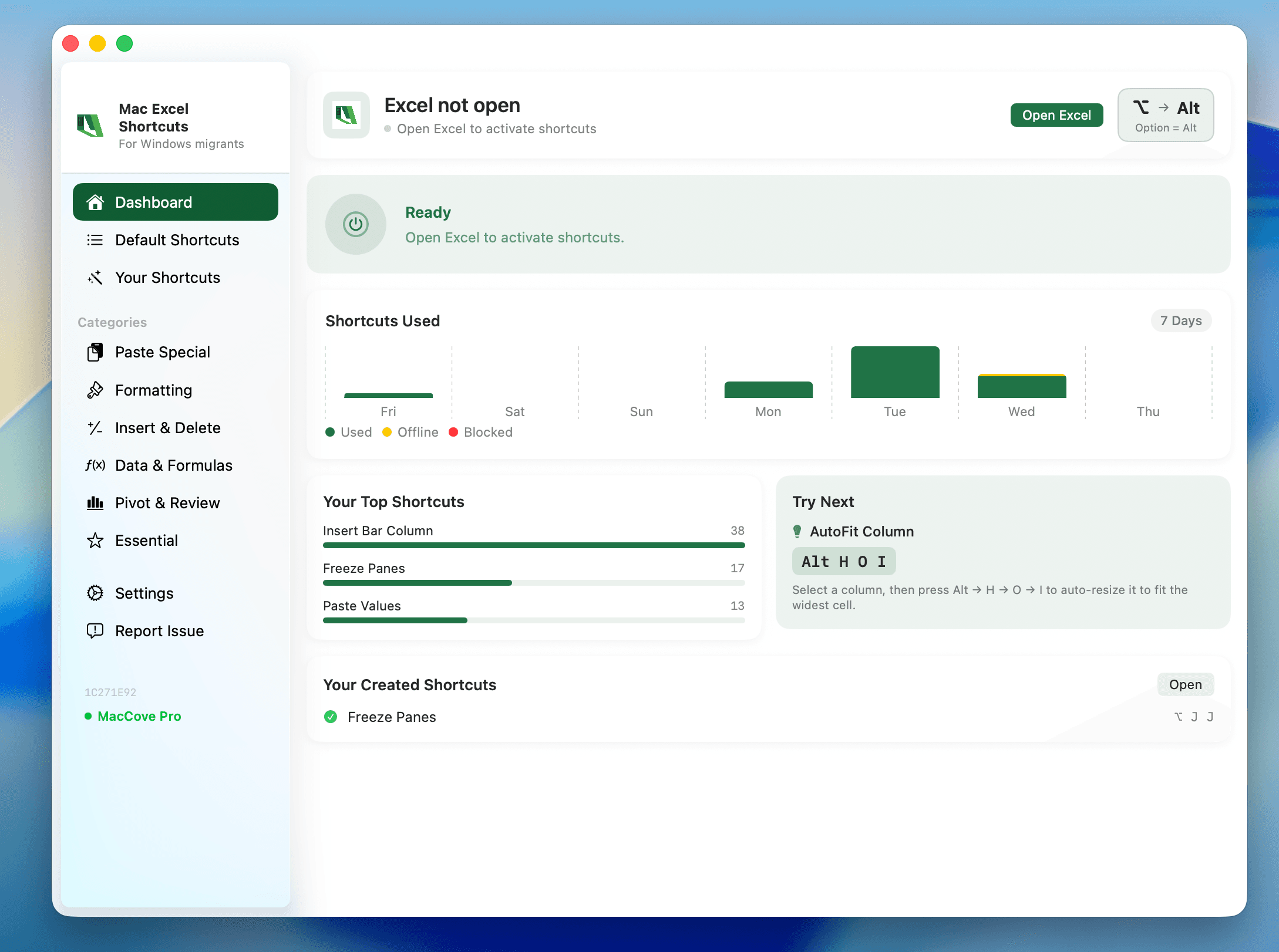
Cmdas your primary modifier, useFn+Cmd+Right/Left/Up/Downfor Ctrl-style navigation, keepCtrl+Shift+Lfor filters (it didn't change), and expect to rebuild your Quick Access Toolbar habits around the menu bar and keyboard shortcuts instead. Below are 13 concrete tips — for the full role-based deep dive, see the finance professionals guide linked below. Mac Excel Shortcuts app is built to close exactly this kind of gap, including a real shortcut for Remove Duplicates that neither platform ships by default.
Finance work leans hard on a small set of repeated actions: audit trails, formula tracing, formatting numbers fast, and navigating large models without losing your place. Here's what actually changes on Mac.
1. Relearn "Ctrl" as "Cmd" — except when you shouldn't
Most Windows Ctrl shortcuts become Cmd on Mac. But navigation shortcuts that used Ctrl+Arrow on Windows become Fn+Cmd+Arrow on Mac laptops.
2. Use Cmd+1 obsessively for number formatting
Format Cells (Cmd+1) is your fastest route to custom number formats — critical for finance where you're constantly toggling between accounting format, percentages, and custom formats.
3. Cmd+Shift+~ isn't your general format shortcut anymore — verify it
On Windows, Ctrl+Shift+~ applies General format. On Mac, this does not exist.
4. Trace Precedents/Dependents still works, but the shortcut differs
Formula auditing doesn't have a universal default keyboard shortcut on Mac. Budget time to do this from the Ribbon.
5. Cmd+` toggles Show Formulas
Same as Windows' Ctrl+` — this one carried over cleanly.
6. AutoFilter toggle didn't move: Ctrl+Shift+L
One of the few shortcuts Mac Excel kept on Ctrl instead of Cmd. Useful for filtering transaction registers and pivot source data fast. See Autofilter Shortcuts.
7. Freeze header rows on every model — but there's no shortcut for it
Freeze Panes has no default keyboard shortcut on either platform. You can use Mac Excel Shortcuts app to automatically Freeze Panes.
8. Rebuild your Quick Access Toolbar habits around the menu bar
Mac Excel's QAT customization is more limited. Get comfortable driving repeated actions from the menu bar or a dedicated shortcut instead.
9. Cmd+Option+V for Paste Special
Opens the Paste Special dialog directly — essential for pasting values-only over formula-linked cells before sending a model externally.
10. Use Cmd+; and Cmd+Shift+; for dates and timestamps
Cmd+; inserts today's date, Cmd+Shift+; inserts the current time — both carry over from Windows unchanged.
11. Multiple monitor + full-screen model review
Each workbook is its own window by default on Mac. For side-by-side model review, use macOS Split View rather than Excel's internal "Arrange All."
12. Circular reference warnings look different — don't panic
Mac Excel's circular reference alert is a system dialog. Turn on iterative calculation under Excel → Preferences → Calculation.
13. Learn one AutoSum shortcut and stop reaching for the Ribbon
Shift+Cmd+T (confirm exact key combo) is reported as the Mac AutoSum shortcut in some references — verify in your build.
Where Mac Excel Shortcuts app helps
If steps 4, 7, and 13 above don't have reliable native shortcuts, that's exactly the gap Mac Excel Shortcuts app is built to close.