What Are the Hidden Mac Excel Shortcuts?
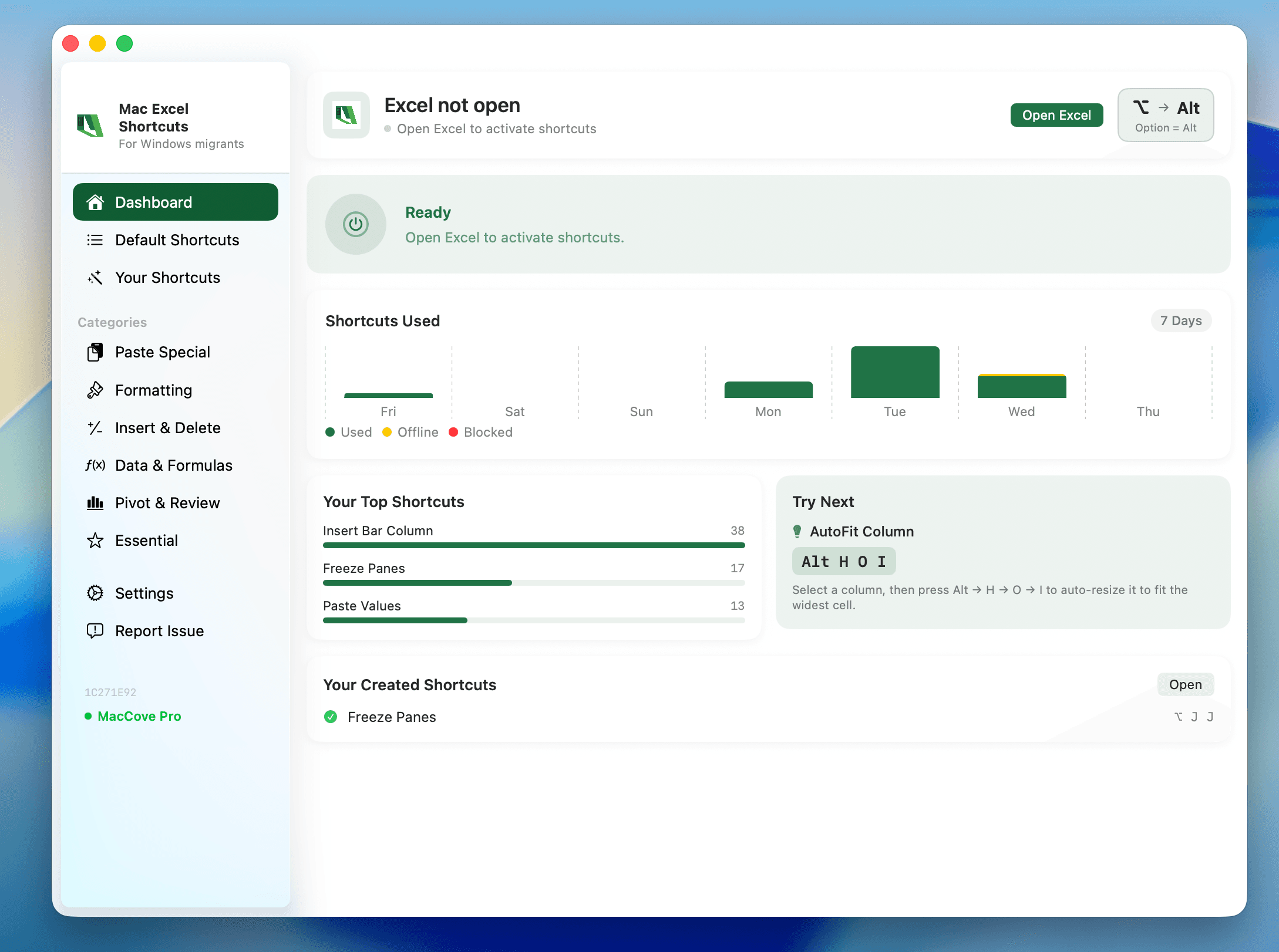
Quick Answer: Beyond the well-known Cmd shortcuts, Mac Excel has a set of lesser-known combos that even experienced users often miss — from
Control+Shift+F3for named ranges to Option-drag for instant cell duplication. Below are 12 genuinely useful ones most guides skip. Mac Excel Shortcuts app surfaces commands like these automatically, including genuinely shortcut-less ones like Remove Duplicates.
Most shortcut lists repeat the same top 20 everyone already knows. This list deliberately skips those.
1. Control+Shift+F3 — Create names from selection
Select a range where the top row (or left column) contains labels, hit this combo, and Excel offers to auto-create named ranges from those labels instantly.
2. Option-drag a cell border — instant copy without copy/paste
Grab the border of a selected cell or range (not the fill handle) and drag while holding Option — it duplicates the selection to the drop location instead of moving it.
3. Cmd+Shift+U — expand/collapse the formula bar
Handy for long nested formulas that wrap several lines.
4. Control+9 / Control+0 — hide rows/columns
These stayed on Ctrl (not Cmd) on Mac, matching Windows exactly, which is why most people never think to try them.
5. Cmd+Shift+9 / Cmd+Shift+0 — unhide rows/columns
The counterpart to #4. Note the modifier switches to Cmd+Shift for the unhide direction.
6. Fn+Cmd+F9 — recalculate all open workbooks
Full recalculation across every open file, not just the active sheet. (confirm exact key combo)
7. Cmd+Option+Shift+K — insert hyperlink
Rarely used but genuinely fast once you know it. (confirm exact key combo)
8. Control+Shift+A — insert argument names into a formula
With your cursor inside a function's parentheses, this pulls in the parameter names as placeholder text.
9. Cmd+Shift+Z — redo (not Cmd+Y)
Windows habit says Ctrl+Y. On Mac, redo is Cmd+Shift+Z, following Apple's system-wide convention.
10. Option+Return inside a cell — line break without leaving edit mode
Same idea as Windows' Alt+Enter, and it carries over cleanly.
11. Double-click the fill handle for instant auto-fill
Double-clicking the fill handle auto-fills a formula down to match the length of an adjacent column — no dragging required.
12. Cmd+Shift+F — open Font dialog directly
Skips straight to the Font tab of Format Cells, bypassing the general dialog.
Why these stay hidden
Most of these fall into one of two categories: shortcuts that stayed on Ctrl when everything else moved to Cmd, or shortcuts for features people default to doing via mouse/Ribbon out of habit and never think to look up.