How to Use Fill Handle in Excel on Mac Using Keyboard?
**Quick Answer:** Select the cell (or range) with the value/formula you want to copy, extend your selection with **Shift-Down Arrow** (or Shift-Right Arrow) to cover the destination cells, then press **Command-D** to fill down or **Command-R** to fill right. No mouse dragging required.
User problem
On Windows, dragging the little square at the bottom-right corner of a cell — the fill handle — is second nature for copying formulas down a column or extending a series (Jan, Feb, Mar...). On a MacBook trackpad, that same drag is fiddly: your cursor has to land on a few pixels precisely, and a slightly-off click can instead move or copy the whole cell. Many Windows migrators don't realize Mac Excel has full keyboard equivalents that skip the trackpad entirely.
What the feature does
The fill handle copies a cell's content, formula, or formatting into adjacent cells, and it's smart about series: type "Monday" and drag, and Excel continues "Tuesday, Wednesday..." It also auto-adjusts relative cell references in formulas as it fills. The keyboard methods below achieve the same result — filling down, right, up, or left — without touching the trackpad.
When to use it
Copying a formula down hundreds of rows (e.g., a VLOOKUP or SUMIFS applied to every row of a dataset).
Extending a series of dates, months, or numbers.
Applying consistent formatting across a range without repeating manual steps.
Any time trackpad precision is slowing you down, especially on a laptop without an external mouse.
Prerequisites
The source cell (with the formula, value, or format you want copied) must be part of your selection, at the top or left edge.
For formula fills, make sure relative vs. absolute references (`A1` vs `$A$1`) are set correctly before filling, or the fill will shift references incorrectly.
Method 1: Ribbon
1. Select the source cell and the destination range together (source at top or left).
2. Go to the Home tab.
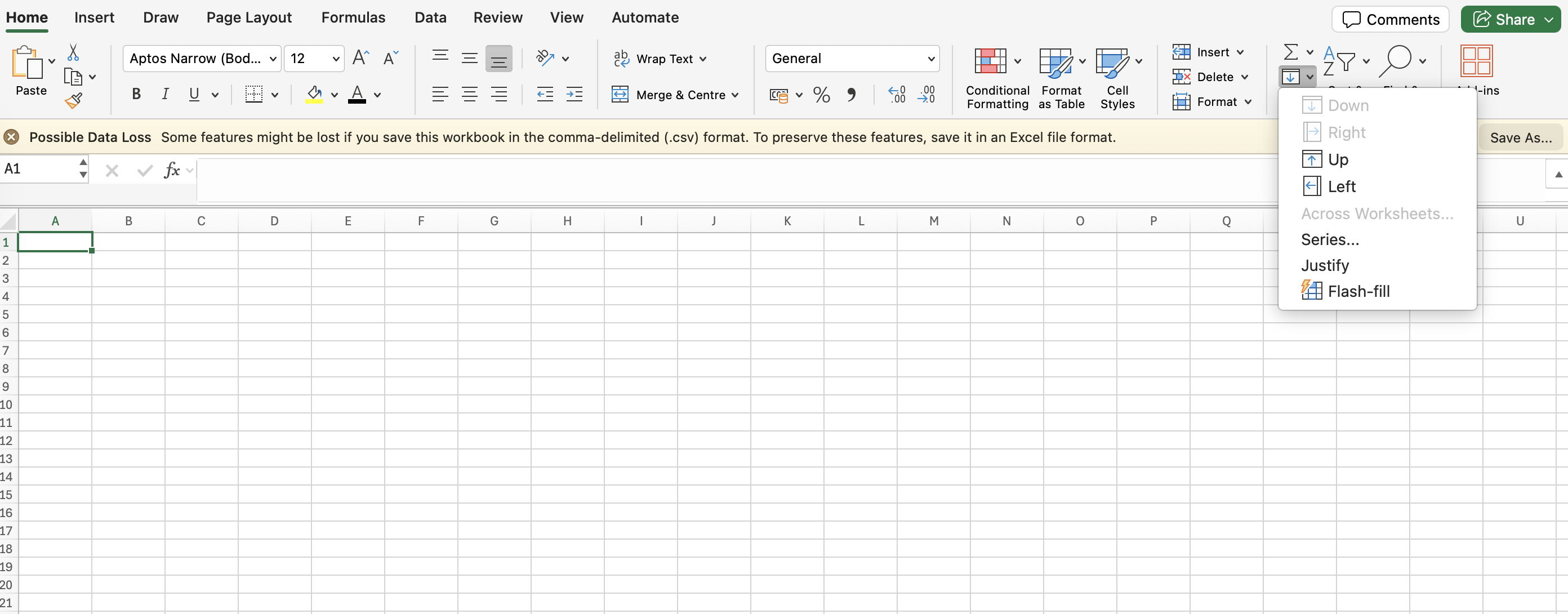
3. Click the Fill icon (looks like a downward arrow inside a small box, in the Editing group).
4. Choose Down, Right, Up, Left, or Series from the dropdown.
Method 2: Menus
Edit > Fill > Down (or Right/Up/Left/Series) from the top menu bar performs the identical action to the Ribbon button. This is a good fallback if you've customized or hidden parts of your Ribbon.
Method 3: Native keyboard shortcuts
This is the fastest method once you build the muscle memory:
1. Click the source cell (the one with your formula or value).
2. Extend the selection down to cover all the cells you want filled: hold Shift and press the Down Arrow repeatedly, or press Shift-Command-Down Arrow to extend to the last contiguous row of data.
3. Press Command-D to fill down.
For filling right instead of down:
Click the source cell.
Extend selection with Shift-Right Arrow (or Shift-Command-Right Arrow for the full contiguous row).
Press Command-R to fill right.
Additional useful shortcuts:
Command-D — Fill Down (mirrors Windows Ctrl+D exactly; this is one of the legacy shortcuts Mac Excel keeps as Command instead of Control, and it's identical muscle memory to Windows).
Command-R — Fill Right (same as Windows Ctrl+R).
Fill Up / Fill Left — no default keyboard shortcut exists on Mac; use the Ribbon or Edit menu for these two directions.
Extend selection to edge of data: Shift-Command-Arrow Key jumps to the last non-blank cell in that direction, which is the fastest way to select a fill destination in a long column.
Method 4: Mouse workflow
1. Click and hold on the small square at the bottom-right corner of the selected cell (the fill handle cursor turns into a thin black crosshair).
2. Drag down, up, left, or right to cover the destination cells.
3. Release. If the source contains a recognizable series (dates, weekdays, numbered list), Excel extends the pattern; otherwise it copies the value/formula.
4. Click the small Auto Fill Options icon that appears after filling to switch between "Copy Cells," "Fill Series," "Fill Formatting Only," or "Fill Without Formatting."
Method 5: Maccove workflow
If Ctrl+D and Ctrl+R are burned into your fingers from years on Windows, mes lets you use your old Windows shortcut muscle memory directly — pressing the Windows-style combo still triggers Fill Down/Right correctly since Mac Excel already shares this one, and mes extends similar mapping to the trickier gaps like Fill Up and Fill Left that Mac Excel doesn't natively support with a keyboard shortcut.
Real-world example
You have a formula in `D2` that calculates commission (`=C2*0.05`) and 500 rows of sales data below it. Instead of dragging 500 rows with a trackpad:
1. Click `D2`.
2. Press Shift-Command-Down Arrow to select from `D2` to `D501` in one move.
3. Press Command-D.
The formula fills instantly down all 500 rows, with relative references adjusting automatically (`D3` becomes `=C3*0.05`, and so on).
Common mistakes
- Forgetting to include the source cell in the selection — if you only select the destination range and press Command-D, Excel fills from the topmost row of your selection, not the cell you intended.
- Absolute references not locked — if your formula should reference a fixed cell (like a tax rate in `$B$1`), forgetting the `$` signs before filling will break the formula in every row.
- Using Shift-Down Arrow one row at a time on huge ranges — use Shift-Command-Down Arrow instead to jump to the end of contiguous data in one keystroke.
Windows equivalent
Windows Excel uses the identical **Ctrl+D** (Fill Down) and **Ctrl+R** (Fill Right), which map directly to **Command-D** and **Command-R** on Mac — this is one of the few areas where the keyboard shortcut is unchanged, just swapping Ctrl for Command. Fill Up and Fill Left have no keyboard shortcut on either platform by default, requiring the Ribbon/menu on both.
FAQs
Does Command-D preserve formatting when filling?
Yes, by default it copies formatting along with values/formulas. Use the Auto Fill Options icon (mouse method) to select "Fill Without Formatting" if you want values only.
Can I fill a series (like dates) using only the keyboard?
Yes — select the source and destination as described, then instead of Command-D, use **Edit > Fill > Series** from the menu to control the step value and type (e.g., weekdays only).
Why does my fill handle sometimes disappear?
It's usually a Trackpad/Mouse setting under **Excel > Preferences > Edit**, where "Enable fill handle and cell drag-and-drop" may be unchecked. Re-enable it there.