How Do You Convert Windows Excel Shortcuts to Mac?
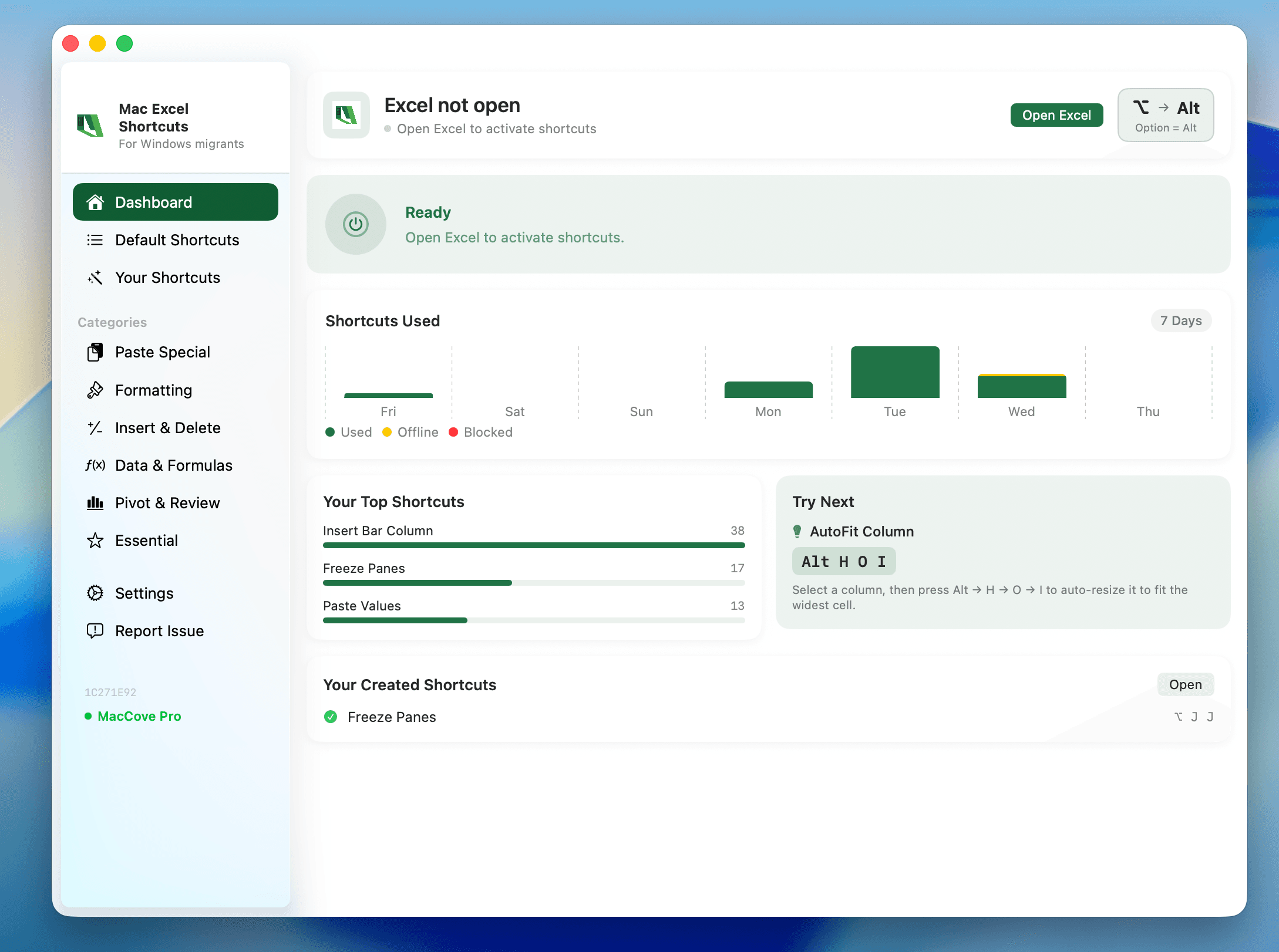
Quick Answer: Roughly 90% of Windows Excel shortcuts convert by swapping Ctrl → Cmd (Ctrl+C becomes Cmd+C, Ctrl+S becomes Cmd+S, and so on). The remaining 10% — mostly function-key combos, some navigation shortcuts, and Paste Special — use different key combos entirely or intentionally keep Ctrl for legacy compatibility. Use the mapping table below as your reference during the first few weeks. Mac Excel Shortcuts app remaps your existing Windows shortcuts, including ones with no native Mac equivalent at all like Remove Duplicates, to work as-typed.
Switching from Windows to Mac Excel is less about learning a new program and more about retraining your fingers. The underlying features are almost identical; the keys you press to reach them are not.
Windows Behavior
On Windows, Ctrl is the universal modifier key for application shortcuts. Alt is used for ribbon navigation and menu access. Function keys like F2, F4, and F11 map directly to specific Excel actions with no OS-level interference.
Mac Behavior
On Mac, Cmd (⌘) takes over the role Ctrl played on Windows for most application-level shortcuts — this is macOS-wide convention, so Excel follows suit for consistency with the rest of the OS. Ctrl on Mac is reserved more for system-level and legacy functions, which is why a handful of Excel shortcuts still use Ctrl instead of Cmd. Function keys also behave differently: macOS reserves bare F-keys for system hardware controls by default, so Excel-specific function key shortcuts often require holding Fn.
Shortcut Mapping Table
Copy: Ctrl+C → Cmd+C
Paste: Ctrl+V → Cmd+V
Paste Special: Ctrl+Alt+V → Cmd+Ctrl+V (not a direct swap)
Bold/Italic/Underline: Ctrl+B/I/U → Cmd+B/I/U
Save: Ctrl+S → Cmd+S
Find: Ctrl+F → Cmd+F
Replace: Ctrl+H → Cmd+Shift+H (confirm exact key combo)
New Worksheet: Shift+F11 → Shift+Fn+F11
Freeze Panes: Alt+W,F,F (menu) → View tab → Freeze Panes, no shortcut on either OS
AutoSum: Alt+= → Shift+Cmd+T (not a direct swap)
Fill Down/Right: Ctrl+D/R → Cmd+D/R
Undo/Redo: Ctrl+Z/Y → Cmd+Z/Y
Select All: Ctrl+A → Cmd+A
Repeat Last Action: F4 → Fn+F4 (or Cmd+Y)
Toggle Absolute/Relative Reference: F4 → Fn+F4, must be actively editing the formula
Insert Cell/Row/Column: Ctrl+Plus → Cmd+Shift+=
Delete Cell/Row/Column: Ctrl+Minus → Cmd+Minus
Edit Active Cell: F2 → Fn+F2
This table covers the highest-frequency shortcuts. For the exhaustive ribbon-by-ribbon list, see the full Ribbon reference linked below.
Common Frustrations
"Ctrl+Alt+V doesn't do anything." Paste Special uses Cmd+Ctrl, not a straight Ctrl-to-Cmd swap.
"F-keys open Mission Control instead of doing what they're supposed to." This is a macOS-wide default, not an Excel bug.
"Alt-key ribbon navigation is gone." Windows' Alt-then-letter ribbon access has no true Mac equivalent.
"AutoSum shortcut isn't Alt+=." This one catches almost everyone.
Better Mac-Native Workflow
Use Spotlight (Cmd+Space) or Excel's "Tell Me" search to find ribbon commands by name.
Lean on trackpad gestures for scrolling and zooming instead of Ctrl+scroll-wheel zoom.
Set "Use F1, F2, etc. keys as standard function keys" on day one in System Settings → Keyboard.
If you don't want to relearn any of this, Mac Excel Shortcuts app remaps your existing Windows shortcuts to work as-typed on Mac.
FAQs
Is there an official Microsoft cheat sheet for this?
Microsoft publishes shortcut reference pages for Excel for Mac, but they're organized by function rather than as a side-by-side Windows comparison.
Why doesn't Microsoft just make the shortcuts identical across platforms?
Because Cmd vs. Ctrl isn't an Excel decision — it's a macOS-wide convention that every native Mac app follows.
Can I use a Windows keyboard on my Mac and get Windows shortcuts back?
Plugging in a Windows keyboard remaps the physical Windows key to act as Cmd, but the shortcuts themselves still follow Mac conventions.