What Are the Autofilter Shortcuts in Mac Excel?
Quick Answer: The core AutoFilter toggle on Mac Excel is
Control+Shift+L— one of the handful of shortcuts Mac Excel deliberately kept asCtrlinstead of switching toCmd, matching Windows exactly. Once filters are on, opening a column's dropdown and navigating it is mostly arrow-keys-and-Return, with a couple of Mac-specific quirks below. Mac Excel Shortcuts app keeps this and the rest of your Windows filtering muscle memory working consistently, including gaps like Remove Duplicates that neither platform maps by default.
This is the keyboard-only quick reference. For the full step-by-step walkthrough, see the complete filtering guide linked below.
Why some AutoFilter shortcuts stay on Ctrl
Mac Excel remaps most Windows Ctrl shortcuts to Cmd (Ctrl+C → Cmd+C, Ctrl+S → Cmd+S, etc.) because Cmd is the "primary modifier" convention on macOS. But a small set of shortcuts — mostly ones involving letter combos that would collide with macOS system-level or app-level shortcuts if moved to Cmd — were left on Ctrl on purpose. AutoFilter toggle (Ctrl+Shift+L) is one of them. This is genuinely useful for Windows migrators: it's one of the few places your old muscle memory just works unchanged.
Quick reference table
| Shortcut | Description | Windows Equivalent |
| Control+Shift+L | Toggle AutoFilter on/off for the selected range/table | Ctrl+Shift+L |
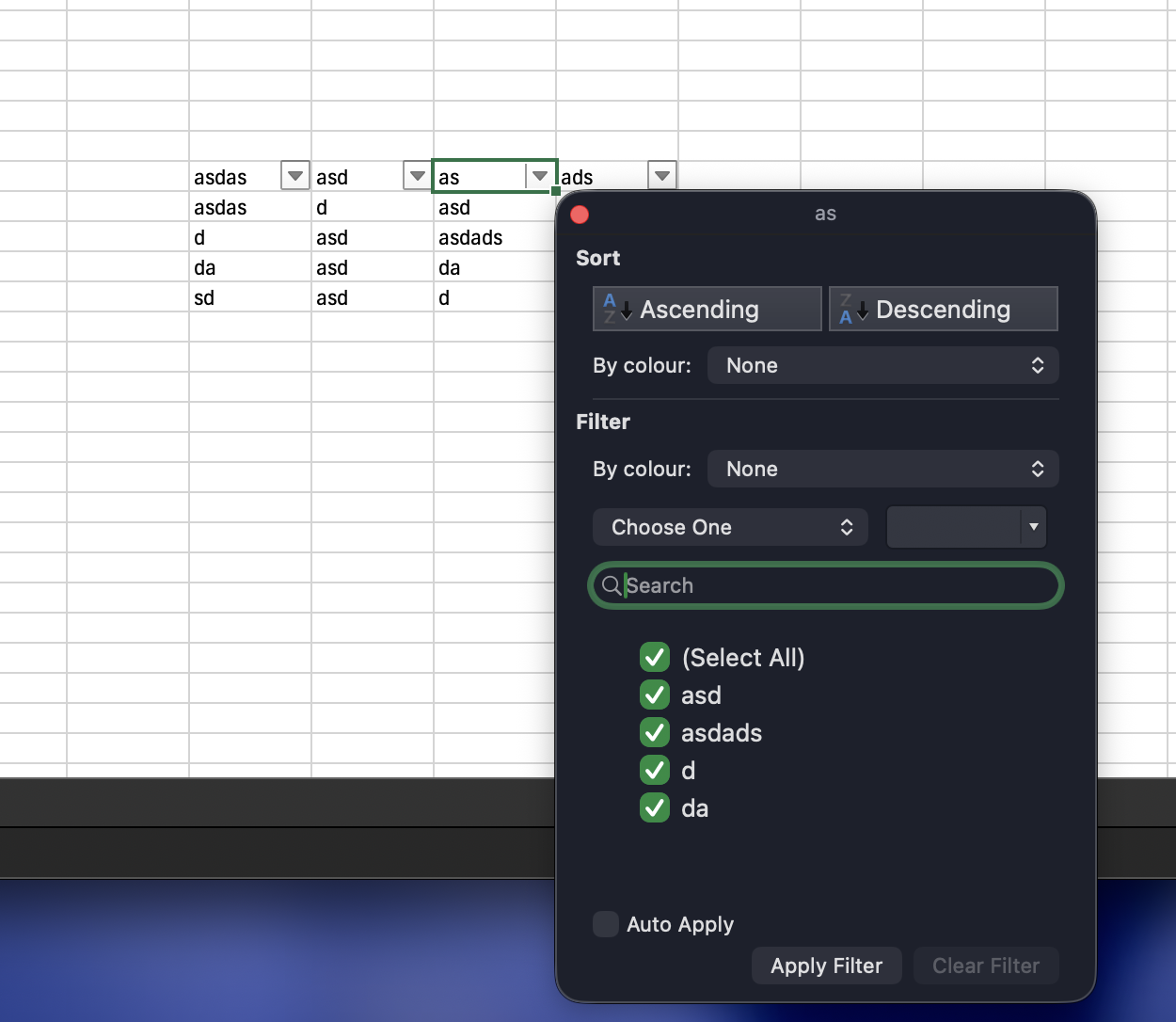
| Option+Down Arrow | Open the filter dropdown for the active cell's column (when AutoFilter is on) | Alt+Down Arrow |
| Down Arrow / Up Arrow (inside open dropdown) | Move between filter options | Same |
| Space | Toggle the checkbox of the highlighted filter item | Same |
| Return | Apply the current filter selection and close the dropdown | Same |
| Esc | Close the dropdown without applying changes | Same |
| Cmd+Shift+L (confirm exact key combo) | Clear filter on the current column in some builds — behavior has varied across Excel versions, verify in your version | N/A / varies |
| Control+Shift+R (confirm exact key combo) | Reapply filters after data changes (Data → Reapply) | Ctrl+Alt+L |
| Tab (inside dropdown search box) | Move focus from the search field into the item list | Same |
| Typing while dropdown is open (confirm exact key combo) | Jumps to / filters the item list by typed text (search-as-you-type in newer builds) | Same |
Common gotchas
Ctrl+Shift+Ltoggles for the whole range, not one column. If you only want to remove one column's filter, open that column's dropdown and choose "Clear Filter From [Column]" instead.AutoFilter needs a header row. If Excel guesses your data has no headers, it will include row 1 in the filterable data.
Filtering a Table vs. a plain range behaves slightly differently — Tables (
Cmd+T) get AutoFilter dropdowns automatically and keep them even after re-sorting.