Is There a Freeze Panes Keyboard Shortcut on Mac?
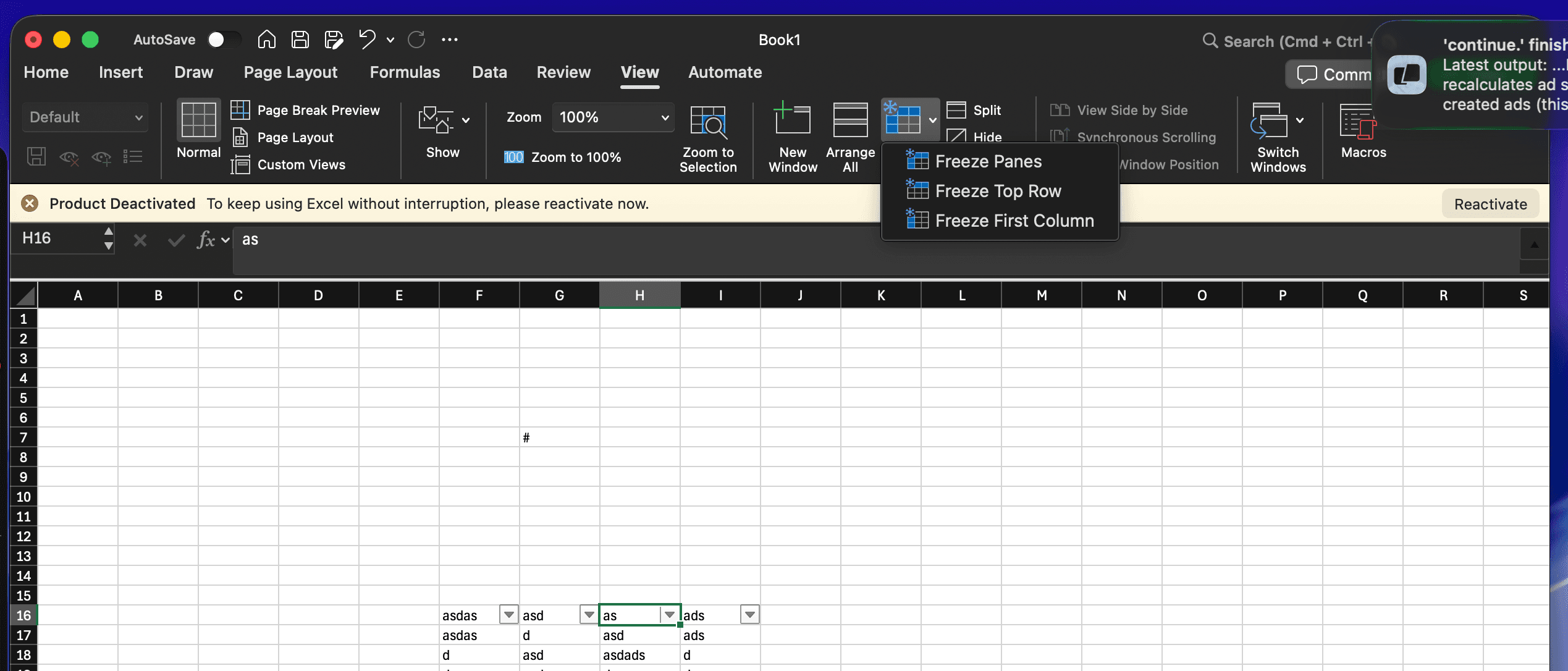
Quick Answer: Excel — on Windows and Mac — has no built-in keyboard shortcut for Freeze Panes. You freeze rows/columns through View → Freeze Panes, either from the Ribbon or the menu bar. If you want a real keyboard shortcut for it, you have to assign one yourself via macOS keyboard shortcuts, or use a utility like Mac Excel Shortcuts app, which ships with Freeze Panes pre-mapped to a single keystroke. Mac Excel Shortcuts app ships Freeze Panes, and other keyboard-less commands like Remove Duplicates, pre-mapped to a single keystroke.
For the full walkthrough with every freeze option explained, see the complete Freeze Panes guide linked below. This page is the fast version.
The problem
You select a cell, reach for Ctrl+Alt+F or whatever muscle-memory shortcut you had on Windows (which, to be clear, also isn't a native Windows shortcut), and nothing happens. Freeze Panes is one of the few genuinely common Excel actions that has never had a default keyboard shortcut on any platform.
What the feature does
Freeze Panes locks specific rows and/or columns in place so they stay visible while you scroll through the rest of the sheet.
Method 1: Menu bar
Click the cell just below and to the right of what you want frozen.
Go to View in the menu bar.
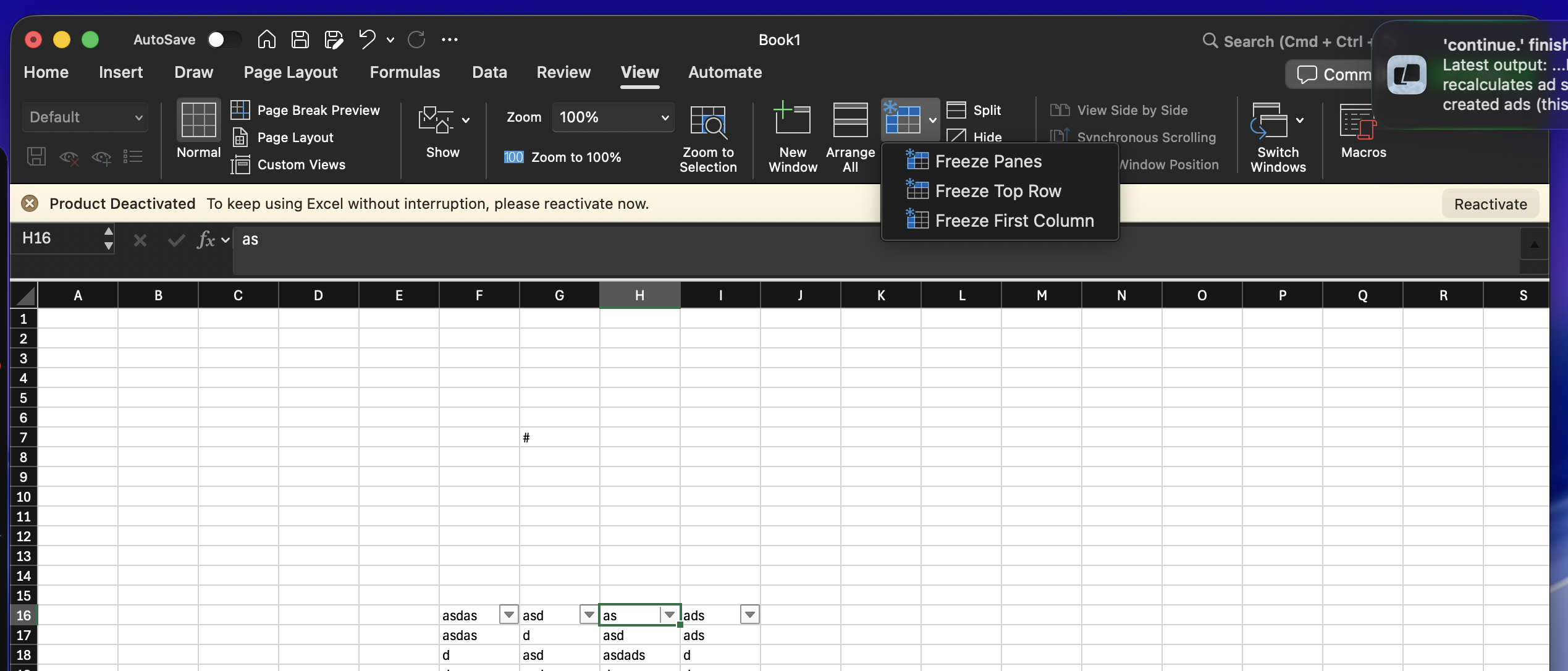
Choose Freeze Panes, then pick: Freeze Panes, Freeze Top Row, or Freeze First Column.
Method 2: Ribbon
Click the View tab, click Freeze Panes in the Window group, choose the same three options. Functionally identical to Method 1.
Method 3: Native keyboard shortcut
There isn't one. This is the whole reason this article exists. Microsoft has never assigned a default key combo to any of the three Freeze Panes options in Excel, on Windows or Mac.
Method 4: Assign your own macOS shortcut
System Settings → Keyboard → Keyboard Shortcuts → App Shortcuts
Click +, choose Microsoft Excel as the application.
Type the exact menu text:
Freeze PanesAssign a key combo, e.g.
Cmd+Option+F(pick something not already in use).
This works, but it's brittle — the menu text has to match exactly, it only fires from the top-level toggle, and it won't sync across machines.
Method 5: The MacCove's Mac Excel Shortcuts app workflow
Mac Excel Shortcuts app ships Freeze Panes as a pre-built, pre-tested shortcut so you skip the System Settings fiddling entirely — select your cell, hit the key combo, done.
Common mistakes
Selecting the wrong cell before freezing — the freeze happens above/left of your selected cell.
Trying to freeze non-adjacent rows/columns — not supported.
Forgetting that Freeze Panes and Split View are different features.
FAQs
Is there really no shortcut on Windows either?
Correct — this one surprises people. It's menu-only by default on both platforms.
Can I freeze both a row and a column at once?
Yes — select the cell one row below and one column right of where you want the freeze, then use plain Freeze Panes.