How Do Data Analysts Use Excel Shortcuts on Mac?
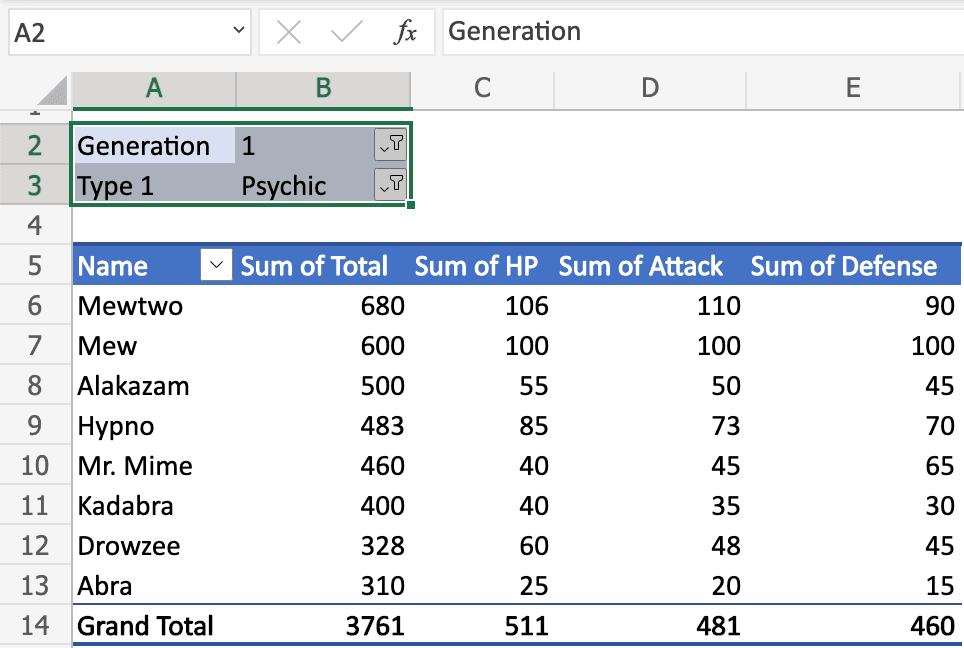
Quick Answer: Data analysts spend most of their Excel time in three modes: building pivot tables, filtering/sorting large ranges, and cleaning messy data. On Mac, pivot table shortcuts are the thinnest part of Excel's keyboard coverage (many actions require the ribbon), while filtering (
Cmd+Shift+L), sorting, and formula shortcuts map predictably from Windows Ctrl to Mac Cmd. Mac Excel Shortcuts app helps most with the inconsistent ones — Paste Special and cell navigation. Mac Excel Shortcuts app also adds a real keyboard shortcut for Remove Duplicates, one of the few common data-cleaning actions Mac Excel leaves mouse-only.
User problem
Analysts move enormous volumes of data through Excel — importing raw exports, cleaning them, pivoting them, filtering them down to what matters. Windows-trained analysts hit a wall on Mac specifically around pivot tables and Paste Special.
What this guide covers
Shortcuts for the data analyst's core loop: filtering and sorting large datasets, formula-heavy analysis, data cleaning speed, and pivot table basics. For the exhaustive pivot table shortcut list, see the dedicated pivot shortcuts reference linked below — this guide covers the analyst workflow around pivots, not every pivot shortcut.
When to use it
Cleaning raw data exports before analysis
Filtering and sorting large ranges to find patterns
Building formulas across large datasets (VLOOKUP/XLOOKUP, SUMIFS, COUNTIFS)
Building and refreshing pivot tables from live data sources
Prerequisites
Excel for Mac 365 (XLOOKUP and dynamic arrays require 365)
Comfort with
fnfor F-key shortcutsOptional: Mac Excel Shortcuts app for Windows-style shortcut translation
Method 1: Ribbon
The Data tab is the analyst's home base — Sort, Filter, Remove Duplicates, Text to Columns, and Data Validation are all here. Insert → PivotTable is the primary path to build a new pivot.
Method 2: Menus
Right-click a pivot table field for Group, Ungroup, Field Settings, and Refresh — often faster than hunting for a keyboard shortcut.
Method 3: Native keyboard shortcuts
Filtering & sorting
Toggle AutoFilter arrows:
Control+Shift+LOpen filter dropdown on active cell:
Option+Down ArrowSelect current data region:
Cmd+Shift+8Select entire column:
Control+Space
Formulas
AutoSum:
Shift+Cmd+TToggle absolute/relative references:
Cmd+TShow formulas instead of results:
Control+`
Data cleaning
Fill down/right:
Cmd+D/Cmd+RFind:
Cmd+F/ Replace:Option+Cmd+F(confirm exact key combo)Insert row/column:
Control+I/ Delete:Control+K
Pivot tables
Refresh pivot table:
Cmd+Option+F5(confirm exact key combo)Group selected items:
Shift+Option+Right Arrow
Method 4: Mouse workflow
For exploratory analysis, dragging fields directly in the PivotTable Fields pane is still the fastest way to reshape a pivot on Mac.
Method 5: Maccove workflow
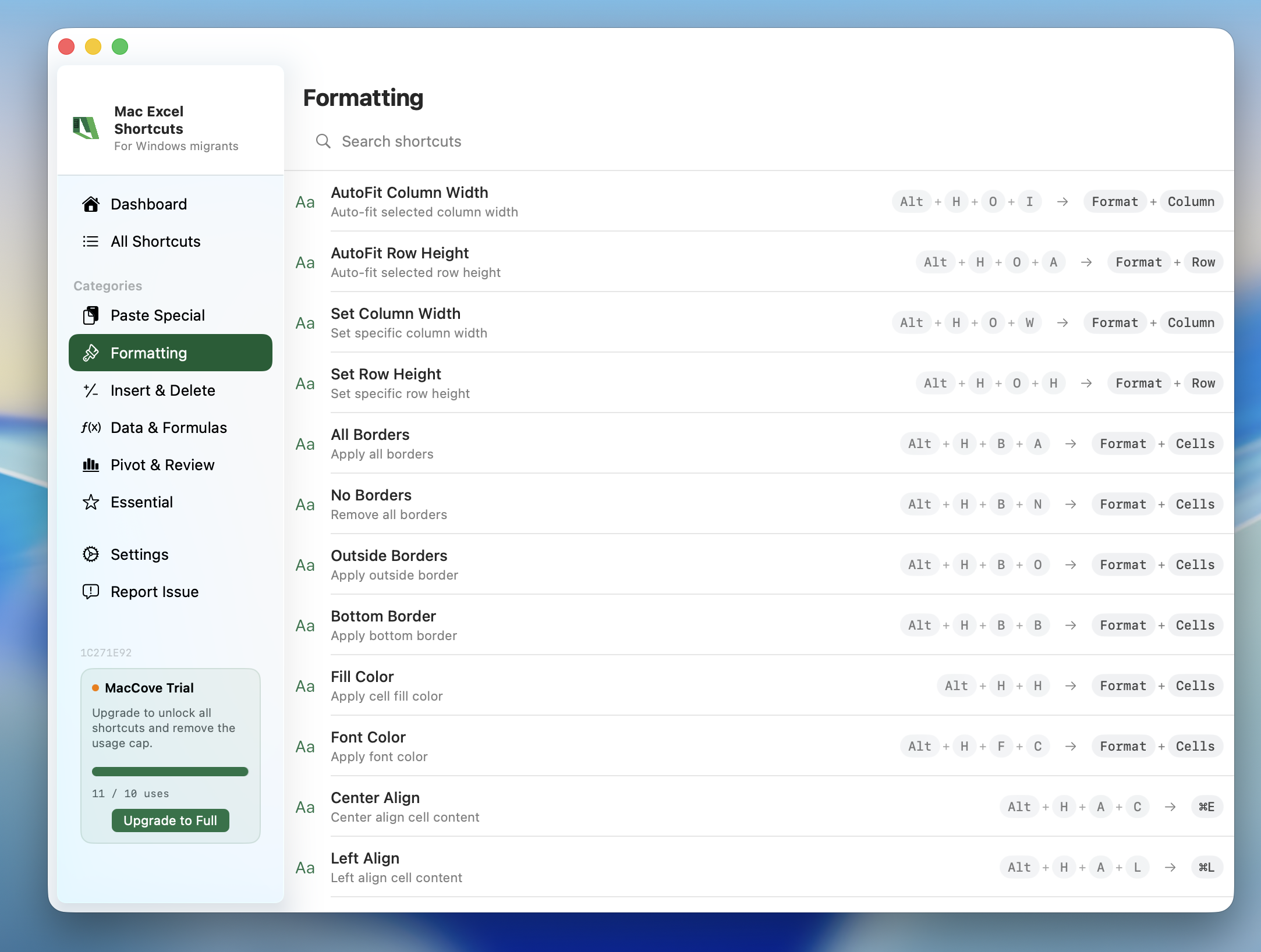
Analysts feel the Windows-to-Mac gap most acutely in Paste Special and cell navigation muscle memory. Mac Excel Shortcuts app catches the Windows-style keystrokes for both.
Real-world example
You've imported a CSV export with 40,000 rows of transaction data. Workflow: Cmd+A to select all, Data → Remove Duplicates to strip repeat rows, Cmd+Shift+L to turn on filters, Option+Down Arrow on the date column to filter to the current quarter, then build a pivot dragging Category to Rows and Amount to Values.
Common mistakes
Expecting a keyboard shortcut for Insert PivotTable — there isn't one by default.
Using
Cmd+Spacefor column selection and getting Spotlight instead — the correct shortcut isControl+Space.Forgetting to refresh the pivot table after editing source data.
FAQs
Why isn't there a default shortcut for Insert PivotTable on Mac?
It's a multi-step dialog-driven command on both platforms, and Microsoft never assigned Mac Excel a keyboard shortcut for launching it.
Does XLOOKUP work the same on Mac as Windows?
Yes, if you're on Excel 365 on both platforms.