How Do You Clean a CSV in Excel on Mac from Start to Finish?
Quick Answer: Import the CSV via Data > Get Data > From Text/CSV (not a plain double-click open) so you can preview and set column types before anything loads, then remove duplicates (Data > Remove Duplicates), trim whitespace (=TRIM()), fix data types, and use Text to Columns to split any packed fields — all doable in under 15 minutes for a typical few-thousand-row export. Neither Windows nor Mac Excel ships a default keyboard shortcut for Remove Duplicates, but Mac Excel Shortcuts app adds one, so this step doesn't force you back to the Ribbon.
Goal & sample dataset
You've exported a CSV from a CRM, bank portal, or internal tool — something like transactions_export.csv with columns: Date, Customer Name, Amount, Status, Notes. Real-world exports like this are almost never clean: dates come in as text, amounts have stray currency symbols, names have trailing spaces, and there are duplicate rows from a failed export retry. The goal of this workflow is to take that raw CSV and turn it into a clean, properly-typed Excel table ready for PivotTables, formulas, or charts.
Sample dataset for this walkthrough: a 3,000-row transactions export with the columns above, plus a Region column with inconsistent capitalization ("east," "East," "EAST").
Estimated time
10–20 minutes for a dataset in the 1,000–10,000 row range, once you know the steps. First time through, budget 30 minutes.
Skills required
Basic familiarity with Excel formulas (TRIM, VALUE, PROPER).
Comfort with the Ribbon's Data tab.
No VBA or scripting knowledge needed for this workflow.
Step-by-step solution
Step 1: Import correctly, don't just double-click
Double-clicking a .csv file opens it with Excel's default (and sometimes lossy) auto-detection — leading zeros in IDs get dropped, dates can get silently reformatted. Instead:
Open a blank workbook.
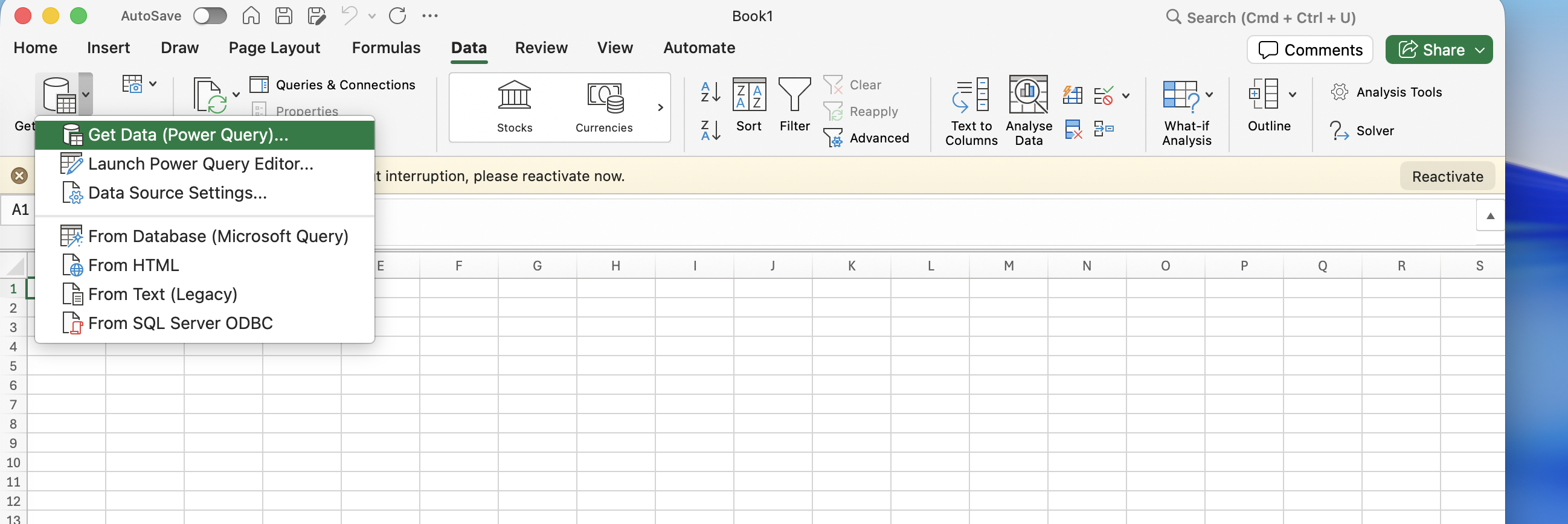
Go to Data > Get Data > From File > From Text/CSV (on some Excel builds, it's Data > Get External Data > Import Text File — confirm exact menu path for your Excel version).
Select your CSV. Excel shows a preview window with detected column types.
Check each column's data type in the preview — set
Dateto Date,Amountto Decimal Number, and leave ID-like fields as Text if they contain leading zeros.Click Load (or Load To... if you want it as a Table in a specific location).
Step 2: Convert to an Excel Table
With your data loaded, click inside it and press Command-T to convert the range to a Table. This gives you auto-filtering, banded rows for readability, and formulas that auto-fill as you add rows later.
Step 3: Remove duplicate rows
Click inside the table.
Go to Data > Remove Duplicates.
Check the columns that should be evaluated for duplication (usually all of them, or a subset like Date + Customer Name + Amount if you expect near-duplicates).
Click OK. Excel reports how many duplicate rows were removed.
Step 4: Trim whitespace and fix inconsistent casing
Trailing/leading spaces are invisible but break VLOOKUPs and grouping. In a helper column next to Customer Name, use =TRIM(PROPER(B2)). TRIM removes extra spaces, PROPER normalizes casing ("john smith" → "John Smith"). For the Region column, use =PROPER(TRIM(E2)) to fix "east" / "EAST" → "East" consistently. Fill this formula down the whole column, then paste the results back as values: select the helper column, Command-C, then Edit > Paste Special > Values Only over the original column.
Step 5: Fix numbers stored as text
Amount columns from CSV exports often import as text, especially if they contain currency symbols or commas. Check for a green triangle in the top-left of the cell — that's Excel's "number stored as text" warning.
Select the column.
Click the warning icon that appears, choose Convert to Number.
If the icon doesn't appear, use a helper column:
=VALUE(SUBSTITUTE(SUBSTITUTE(D2,"$",""),",",""))to strip symbols and convert to a true number, then paste values back over the original.
Step 6: Split packed fields with Text to Columns
If a field like Notes or a combined "Smith, John" name column needs splitting: select the column, go to Data > Text to Columns, choose Delimited, click Next, select the delimiter, preview the split, click Finish.
Step 7: Standardize dates
If dates imported as text (common with non-US CSV formats like DD/MM/YYYY), use =DATEVALUE(F2), then format the result column as a Date. Watch for ambiguous dates like 03/04/2024 — confirm with the data source whether it's day-first or month-first before converting in bulk.
Step 8: Final check
Use Ctrl-` (grave accent, unusual case where Mac Excel keeps the same key as Windows) to toggle Show Formulas view and visually verify formulas filled correctly.
Re-run Data > Remove Duplicates after the Trim/Proper cleanup, since case/whitespace differences can mask duplicates that only become identical after cleaning.
Sort by each key column briefly to eyeball outliers.
Faster keyboard-only workflow
Command-T — convert to Table immediately after import.
Shift-Command-Down Arrow — select full column of data for a helper formula.
Command-D — fill the TRIM/PROPER formula down instantly.
Command-C, then Shift-Command-V — copy and paste special, press Return after selecting "Values Only".
Data > Remove Duplicates via the Ribbon — no default keyboard shortcut exists for Remove Duplicates, so this stays a Ribbon/menu step even in a "keyboard-only" flow.
Productivity tips
Save a cleaned template of your import steps as an Excel Table style plus a documented list of your TRIM/PROPER helper formulas, so next month's export takes 5 minutes instead of 20.
If you clean the same CSV shape every week or month, consider building a Power Query transformation instead of manual formulas.
If you're constantly reaching for Ctrl-based shortcuts from your Windows days, Mac Excel Shortcuts app lets you use your old Windows shortcut muscle memory directly for common editing commands like copy, paste special, and find/replace, which show up constantly during CSV cleanup.
FAQs
Why do leading zeros disappear from ID columns when I open a CSV directly?
Double-clicking a CSV lets Excel auto-detect types, and it treats a column like "007" as a number, dropping the zeros. Always import via Data > Get Data > From Text/CSV and manually set that column to Text in the preview.
Should I clean data in the CSV itself or after importing to Excel?
Always after importing into Excel — CSVs have no formatting or formula support, and re-exporting mid-cleanup risks losing your work. Keep the raw CSV untouched as a backup.
How do I handle a CSV with inconsistent number of columns per row?
This usually means embedded commas within a text field weren't properly quoted in the export. Re-export with a different delimiter if possible, or use Power Query's more forgiving parser instead of a plain CSV import.