How Do You Do Keyboard-Only Financial Modeling in Excel on Mac?
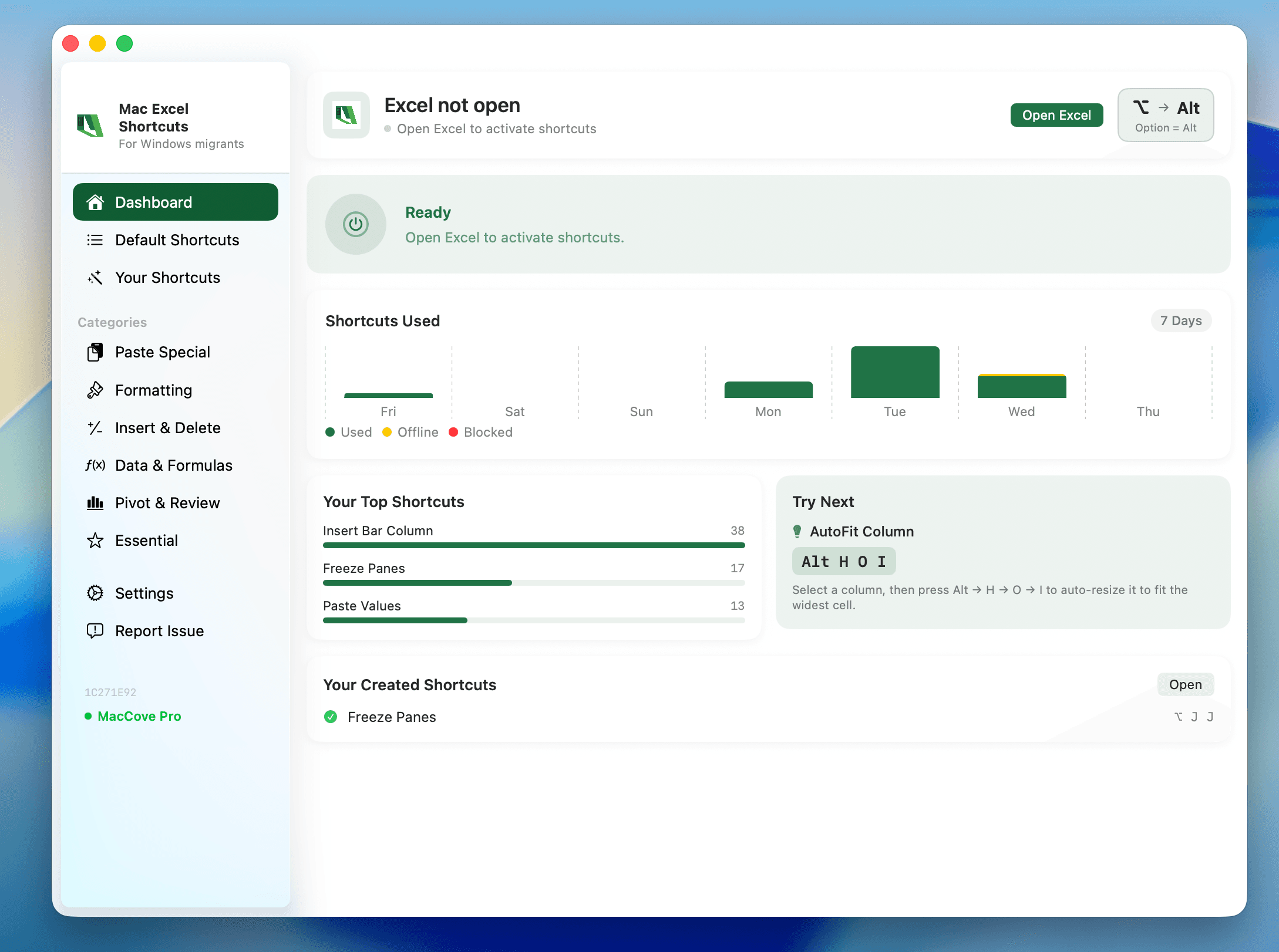
Quick Answer: Build a three-statement or DCF model without touching the trackpad by using Command-Arrow keys to navigate, F2 to edit in-cell, Command-1 for Format Cells, F4 to toggle absolute references, and Command-` (grave accent) to audit formulas visually — the core keyboard vocabulary financial analysts rely on translates almost entirely from Windows to Mac. Mac Excel Shortcuts app covers the handful of commands here with no Mac equivalent, including Remove Duplicates.
Goal & sample dataset
Financial modeling rewards speed and precision more than almost any other Excel use case. This workflow shows how to replicate keyboard-only discipline on Mac Excel, flagging where Windows shortcuts map cleanly and where they don't.
Sample dataset: a simple 3-year revenue build with a Revenue tab feeding into a Summary tab with a basic DCF.
Estimated time
Expect to spend 20–30 minutes practicing the shortcuts below until they're automatic.
Skills required
Comfort with financial modeling concepts (drivers, hardcodes vs. formulas, sensitivity)
Basic Excel formula fluency (SUM, NPV, IRR, IF, INDEX/MATCH)
Step-by-step solution
Step 1: Set up model color-coding conventions first
Decide your color convention (blue = hardcoded inputs, black = formulas, green = links to other sheets) via Home > Font Color.
Step 2: Navigate the model without the mouse
Command-Arrow Key — jump to the edge of a contiguous data block
Command-Home / Command-End — jump to A1 / last used cell
Control-Page Down / Control-Page Up — move between sheet tabs
Step 3: Build formulas efficiently
F2 — edit the active cell in place
F4 — cycle a cell reference through absolute/relative states
Command-Shift-Enter — legacy array formulas
Command-D / Command-R — fill formulas down or right
Step 4: Toggle reference types and audit formulas
Command-` — toggles Show Formulas mode across the whole sheet
Command-[ — jump to a cell's direct precedent
Step 5: Format without breaking flow
Command-1 — Format Cells dialog
Command-Shift-% — percentage formatting
Command-Shift-$ — currency formatting
Step 6: Build sensitivity and scenario checks
For a quick sensitivity table, use Data > What-If Analysis > Data Table. No default keyboard shortcut exists for launching this dialog.
Faster keyboard-only workflow
F2 to edit the formula cell.
F4 to lock the constant reference to absolute.
Return to confirm.
Shift-Command-Right Arrow to select across forecast periods.
Command-R to fill right.
Command-` to visually verify the fill didn't break any references.
Productivity tips
Build a personal "shortcut cheat sheet" pinned near your monitor for the first two weeks.
Where Mac Excel has no keyboard equivalent, consider assigning custom shortcuts via Tools > Customize Keyboard....
If you're deep in muscle memory from years of Windows-based modeling, Mac Excel Shortcuts app lets you use your old Windows shortcut muscle memory directly for the handful of commands that don't map one-to-one.
FAQs
Is F4 really identical between Windows and Mac Excel?
Yes — F4 to cycle absolute/relative references works the same on both platforms, assuming your Mac's function keys aren't intercepted by system-level shortcuts.
Are there Mac-specific function key conflicts I should know about?
Yes — by default, F-keys on Mac are often mapped to system functions. Enable "Use F1, F2, etc. keys as standard function keys" in System Settings.