What Are the Pivot Table Shortcuts on Mac?
Quick Answer: Pivot tables have the thinnest keyboard shortcut coverage of any major Excel feature on Mac — inserting, refreshing, and reshaping a pivot mostly happen through the ribbon and the PivotTable Fields pane, not dedicated keystrokes. The shortcuts that do exist: Group (
Shift+Option+Right Arrow), Ungroup (Shift+Option+Left Arrow), and Refresh (Cmd+Option+F5confirm exact key combo). This is a companion reference — for full pivot table setup, see the complete guide linked below. Mac Excel Shortcuts app fills in actions Mac Excel leaves keyboard-less here, including Refresh and Remove Duplicates on the underlying data.
This article is a shortcut-focused companion to the full pivot table guide. It doesn't re-explain how to build a pivot from scratch — it's the fast-reference card for once you already know your way around one.
Why pivot tables are keyboard-light on Mac (and Windows)
Pivot tables are inherently drag-and-drop / dialog-driven tools — reshaping which fields go to Rows, Columns, Values, Filters doesn't map cleanly onto single keystrokes on either platform. Windows has slightly more shortcut coverage because of its Alt-key menu accelerator system (Alt+N+V to insert a pivot), which chains individual letter presses through nested menus. Mac has no equivalent, so several "shortcuts" that exist on Windows are really just menu-letter sequences that don't exist on Mac at all.
Shortcut table
Insert PivotTable: no default shortcut — Insert tab → PivotTable (Windows: Alt+N+V menu sequence)
Refresh active pivot table:
Cmd+Option+F5(confirm exact key combo) (Windows: Alt+F5)Refresh all pivot tables/data connections:
Cmd+Option+Shift+F5(confirm, unverified)Group selected items (dates, numbers):
Shift+Option+Right Arrow(Windows: Alt+Shift+Right Arrow)Ungroup selected items:
Shift+Option+Left ArrowExpand/collapse a field: click the +/- toggle, or
Shift+Option+Right/Left Arrowon selected itemMove to next pivot field in Fields pane:
TabSelect entire pivot table: click any cell inside it, then
Cmd+Atwice (confirm behavior)Delete pivot table: select entire table, then
Delete
Method: Ribbon and contextual tools
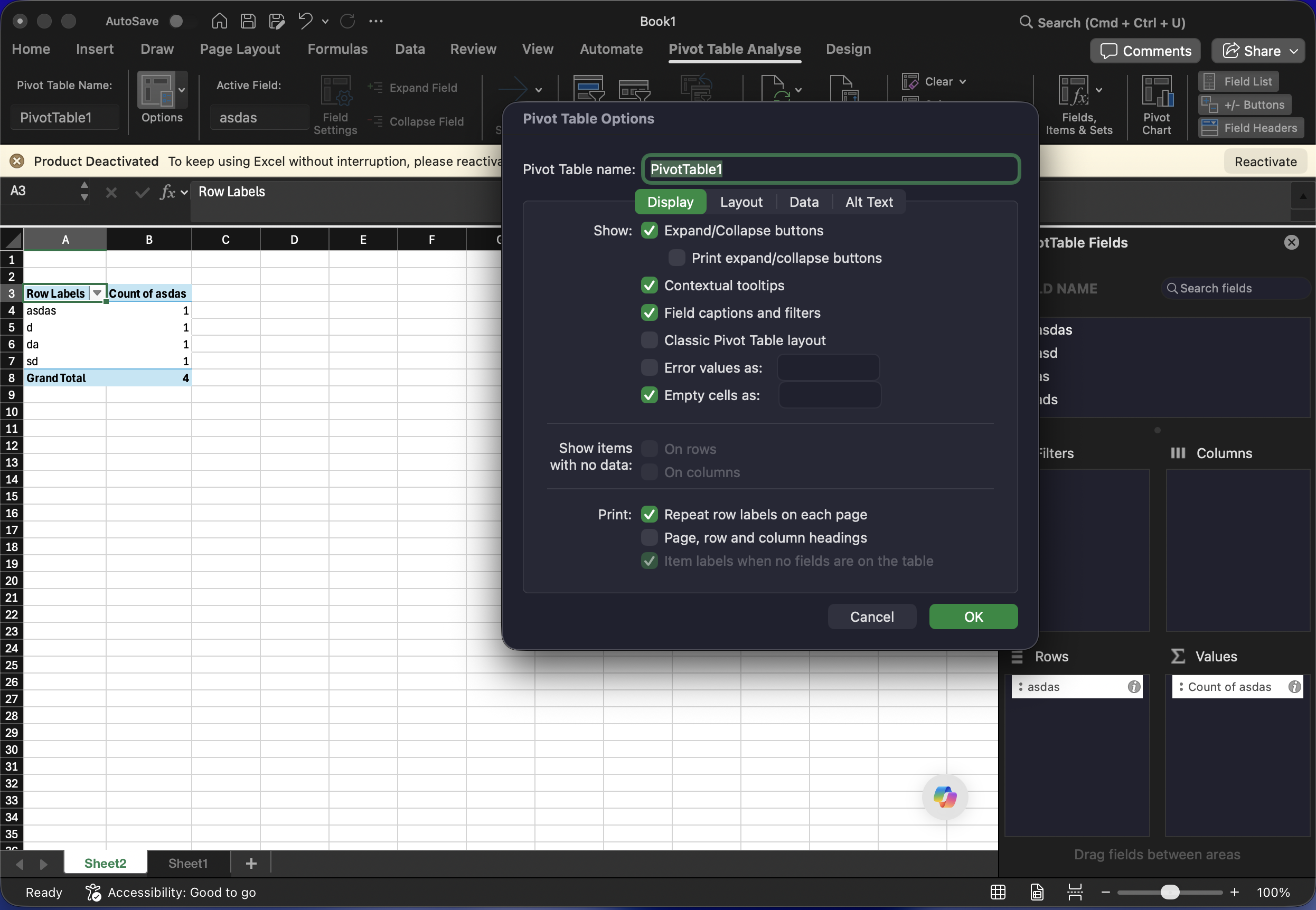
Click anywhere inside a pivot table and Excel automatically shows the PivotTable Analyze and Design tabs — this is where Refresh, Field Settings, Group Selection, and Insert Slicer live. Treat the keyboard shortcuts above as accelerators for the handful of actions you repeat constantly, not as a full replacement for the ribbon.
Real-world example
You've refreshed the source data behind a monthly sales pivot and need to update it, then group the date field by month. Workflow: click any cell inside the pivot, Cmd+Option+F5 to refresh, then click a date cell in the Rows area and Shift+Option+Right Arrow to open the Grouping dialog, select Months, confirm.
Common mistakes
Expecting a keyboard shortcut to exist for inserting a new pivot table — there isn't one by default.
Forgetting to refresh (
Cmd+Option+F5) after changing source data.Using Group on a selection that spans multiple field types.
FAQs
Why can't I find a shortcut to insert a pivot table on Mac?
Because there isn't a default one — this is one of the genuine gaps between Windows and Mac Excel. Use Insert tab → PivotTable, or assign your own custom shortcut.
Do slicers have any keyboard shortcuts on Mac?
Very few — slicers are primarily a mouse/touch tool on both platforms.