How Do Consultants Use Excel Shortcuts on Mac?
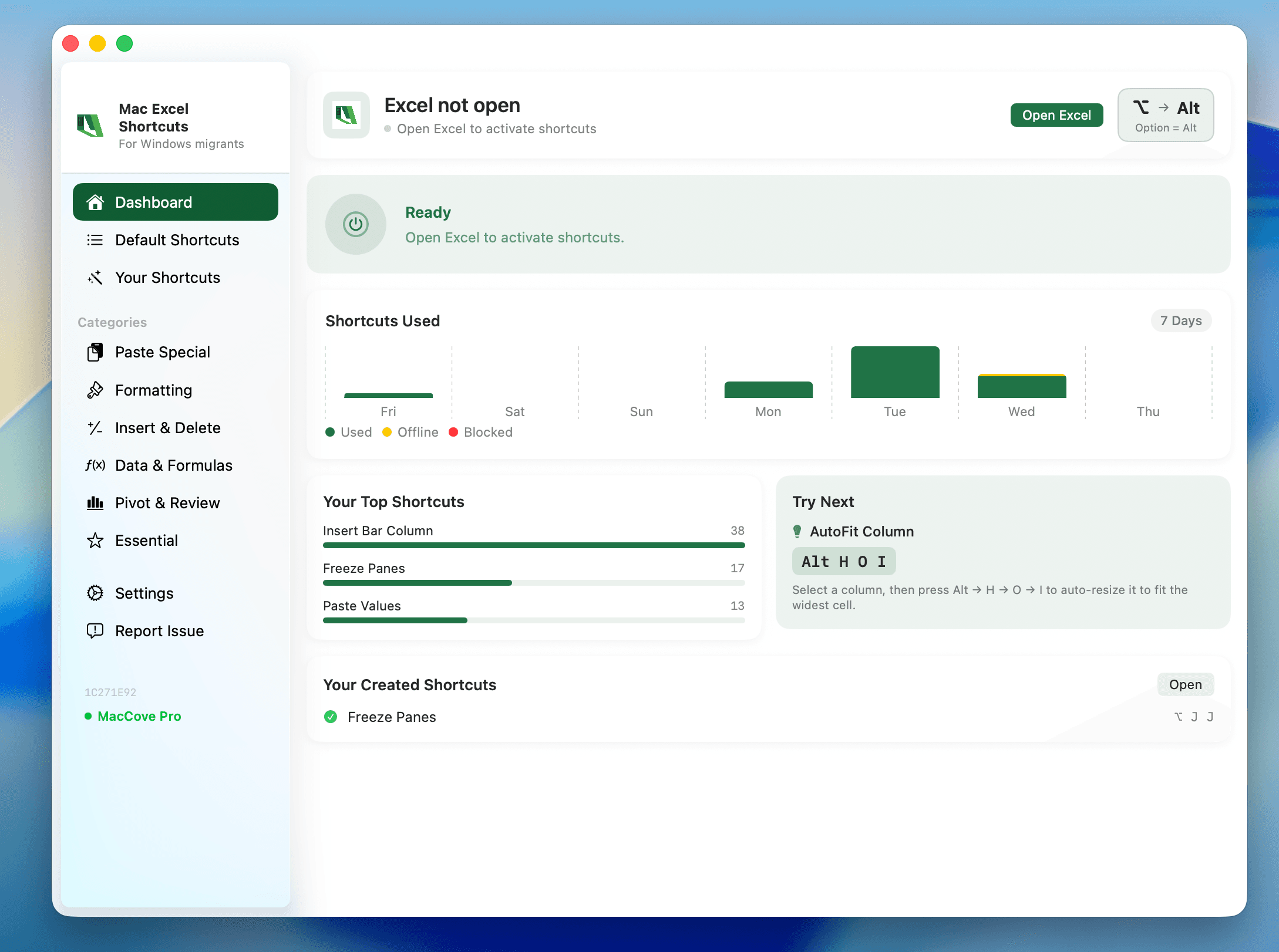
Quick Answer: Consultants live in Excel across dozens of client workbooks a week, moving fast between formatting, formulas, and presentation-ready output. On Mac, the core moves (copy/paste, formatting, navigation) map cleanly from Ctrl to Cmd, but a handful of consultant-critical shortcuts — Paste Special (
Control+Cmd+V), select column (Control+Space), and window switching (Cmd+`) — don't follow that pattern. Mac Excel Shortcuts app closes that gap so you don't lose speed mid-client-call. Mac Excel Shortcuts app catches that keystroke and fires the correct Mac action, along with other commands, like Remove Duplicates, that Mac Excel never gave a shortcut to.
User problem
Consulting work means jumping between client workbooks all day. On Windows, you built years of keyboard reflexes for this. On a Mac, those reflexes half-work, and the moments where they don't cost you exactly the kind of visible fumbling you don't want on a screen-share with a client.
What this guide covers
The shortcut set consultants actually need: fast data manipulation, formatting for polished client-facing output, and working efficiently across many open workbooks. For the full reference list, see the keyboard shortcuts reference linked below.
When to use it
Live client calls where you're building or editing a model on screen-share
Consolidating data from multiple client-provided workbooks
Formatting deliverables under time pressure
Rapid due-diligence or audit-style review across many tabs
Prerequisites
Excel for Mac 365 or 2021+
Familiarity with
fnfor F-key shortcutsOptional: Mac Excel Shortcuts app for automatic Windows-shortcut translation
Method 1: Ribbon
The Home tab covers 90% of consultant formatting needs. The Data tab has Sort, Filter, and Text to Columns. Use the ribbon when you're screen-sharing and want the client to visually follow along.
Screenshot placeholder: Mac Excel ribbon Data tab showing Sort & Filter group — add before publishing.
Method 2: Menus
Right-click (Control+click) is your fastest fallback for Paste Special variants, Insert/Delete, and Format Cells when you're not sure of the exact shortcut mid-call.
Method 3: Native keyboard shortcuts
Data manipulation
Copy/Paste/Cut:
Cmd+C/Cmd+V/Cmd+XPaste Special dialog:
Control+Cmd+VFill down/right:
Cmd+D/Cmd+RToggle AutoFilter arrows:
Control+Shift+LSelect entire column:
Control+Space
Formatting for client output
Format Cells:
Cmd+1Bold/Italic/Underline:
Cmd+B/Cmd+I/Cmd+UCurrency format:
Control+Shift+4
Working across workbooks
Switch between open workbooks:
Cmd+`Repeat last action:
Cmd+Y
Method 4: Mouse workflow
For fast cross-workbook consolidation, drag-and-drop between two windows arranged side by side works identically to Windows — hold Option to copy instead of move.
Method 5: Maccove workflow
The highest-value moment for Mac Excel Shortcuts app in consulting work is Paste Special: your fingers know Alt+E+S+V from years of Windows use, and typing that on Mac does nothing useful. Mac Excel Shortcuts app intercepts the Windows-style keystroke and fires the correct Mac equivalent.
Real-world example
You're consolidating three client-provided budget tabs into one summary before a 2pm review. Workflow: Cmd+` to cycle through the three open workbooks, Cmd+C to copy each region, Control+Cmd+V into the summary tab and choose Values Only, Cmd+1 to reformat, then Cmd+Y to repeat that formatting across the next two blocks.
Common mistakes
Reaching for Alt+E+S (Windows Paste Special) — it does nothing on Mac; use
Control+Cmd+V.Trying to Ctrl+click for multi-select — on Mac trackpads this is
Cmd+click.
FAQs
Why doesn't Merge & Center have a keyboard shortcut on Mac?
It's one of the formatting commands Microsoft never assigned a default shortcut to on Mac.
Does drag-and-drop between workbooks copy formulas or values?
It preserves formulas and relative/absolute references exactly like a normal copy-paste.