Why Doesn't F4 Work in Excel on Mac?
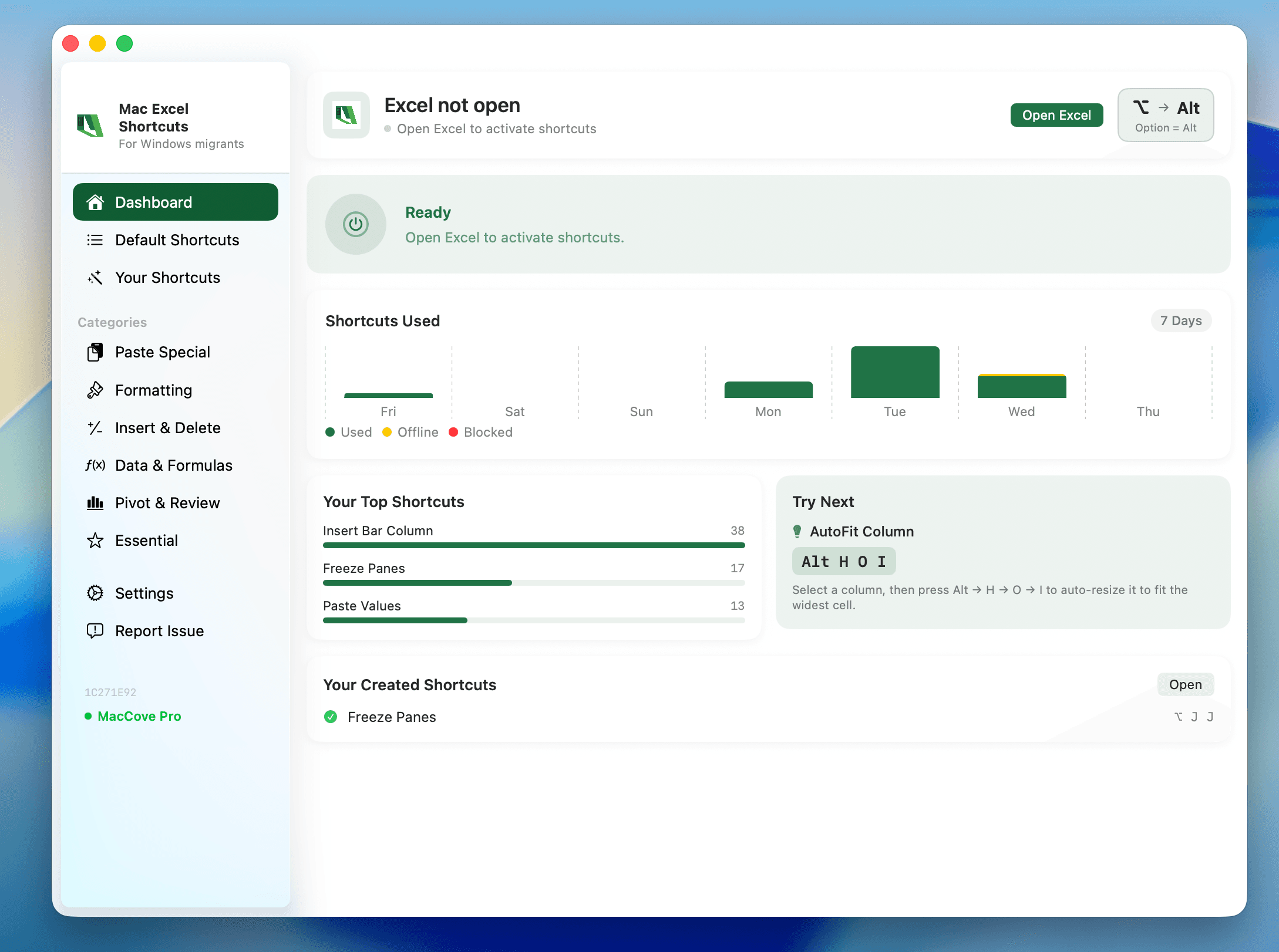
Quick Answer: F4 does work in Excel for Mac for both "repeat last action" and "toggle absolute/relative references" — but macOS reserves the bare F-keys for system functions (like Mission Control or brightness) on many Mac keyboards, so your keypress never reaches Excel. Add the Fn key to your press (Fn+F4), or turn on "Use F1, F2, etc. as standard function keys" in System Settings → Keyboard. If it still doesn't toggle references, you may be clicking instead of editing the formula, which disables F4's reference-cycling behavior. Mac Excel Shortcuts app ships F4 handling pre-configured, along with other gaps like Remove Duplicates that have no native shortcut at all.
Coming from Windows, F4 is muscle memory for two things: repeating your last action, and cycling a cell reference through absolute/relative states. Both exist on Mac. The problem almost always sits between the keyboard and macOS, not inside Excel.
Symptoms
Pressing F4 opens Mission Control, adjusts brightness, or does nothing visible
F4 works in some apps but not in Excel specifically
F4 repeats the last action but won't cycle $ signs in a formula reference
F4 works when editing a formula but not when a cell is just selected
F4 works on an external keyboard but not on the built-in MacBook keyboard, or vice versa
Likely Causes
macOS is intercepting F4 as a system shortcut. By default, many Macs map F-keys to hardware controls.
You need to hold Fn. Without "standard function keys" enabled, F4 alone triggers the system action.
You're not in reference-edit mode. F4's absolute/relative toggle only works while actively editing a formula.
Third-party keyboard or remapping software (Karabiner-Elements, BetterTouchTool) intercepting F4.
Excel-specific menu conflicts. A corrupted key-binding cache can cause F4 to misfire.
Confusing F4 with Cmd+Y. "Repeat Last Action" is more reliably available as Cmd+Y in some Excel versions. (confirm exact key combo)
Diagnostic Checklist
Press Fn+F4 instead of just F4 — does that work?
Check System Settings → Keyboard → "Use F1, F2, etc. keys as standard function keys" — on or off?
Open a formula, place your cursor next to a reference, then press F4 — does it cycle to
$A$1?Test F4 in TextEdit or Notes to see if it's intercepted system-wide or Excel-specific
Test with an external keyboard if you normally use the built-in one
Check if Karabiner-Elements or similar remapping tools are running
Try Cmd+Y as an alternate "repeat" shortcut
Restart Excel, then restart the Mac, and retest
Fixes (Ordered by Probability)
1. Hold Fn when pressing F4. This is the fix for the vast majority of cases.
2. Flip the system setting so bare F-keys work everywhere. Go to System Settings → Keyboard, enable "Use F1, F2, etc. keys as standard function keys." Your brightness/media keys will then require Fn instead.
Screenshot placeholder: System Settings Keyboard pane showing the "standard function keys" toggle — add before publishing.
3. Make sure you're actually editing the formula. Double-click into the cell, click directly next to the cell reference, then press F4. Repeated presses cycle through $A$1 → A$1 → $A1 → A1.
4. Rule out remapping software. Temporarily disable Karabiner-Elements or BetterTouchTool and retest.
5. Reset Excel's keyboard shortcut cache. Quit Office fully and relaunch.
Prevention
Turn on "standard function keys" once, early, so F-keys behave predictably across every app.
If you switch between external and built-in keyboards, F-key behavior can differ per keyboard.
Remember that on Mac, F4's reference-toggle only fires while inside formula-edit mode.
FAQs
Does F4 repeat the last action on Mac like it does on Windows?
Yes — Excel for Mac supports F4 (or Fn+F4) for "Repeat Last Action," and Cmd+Y also triggers it in most versions.
Why does F4 open Mission Control instead of doing anything in Excel?
Because macOS's default keyboard setting reserves bare F-keys for system-level shortcuts.
Can I remap F4 to a different key combo if Fn+F4 bothers me?
Yes, via System Settings → Keyboard → Keyboard Shortcuts → App Shortcuts. Mac Excel Shortcuts app ships with F4 handling pre-configured so you don't have to do this setup yourself.