Available for Mac OS

Navigate Excel
Like You Do on Windows

Alt+Enter for a new line, the fill handle, filtering, sorting, freezing panes — the Windows Excel navigation and data shortcuts you already know, working natively on your Mac.
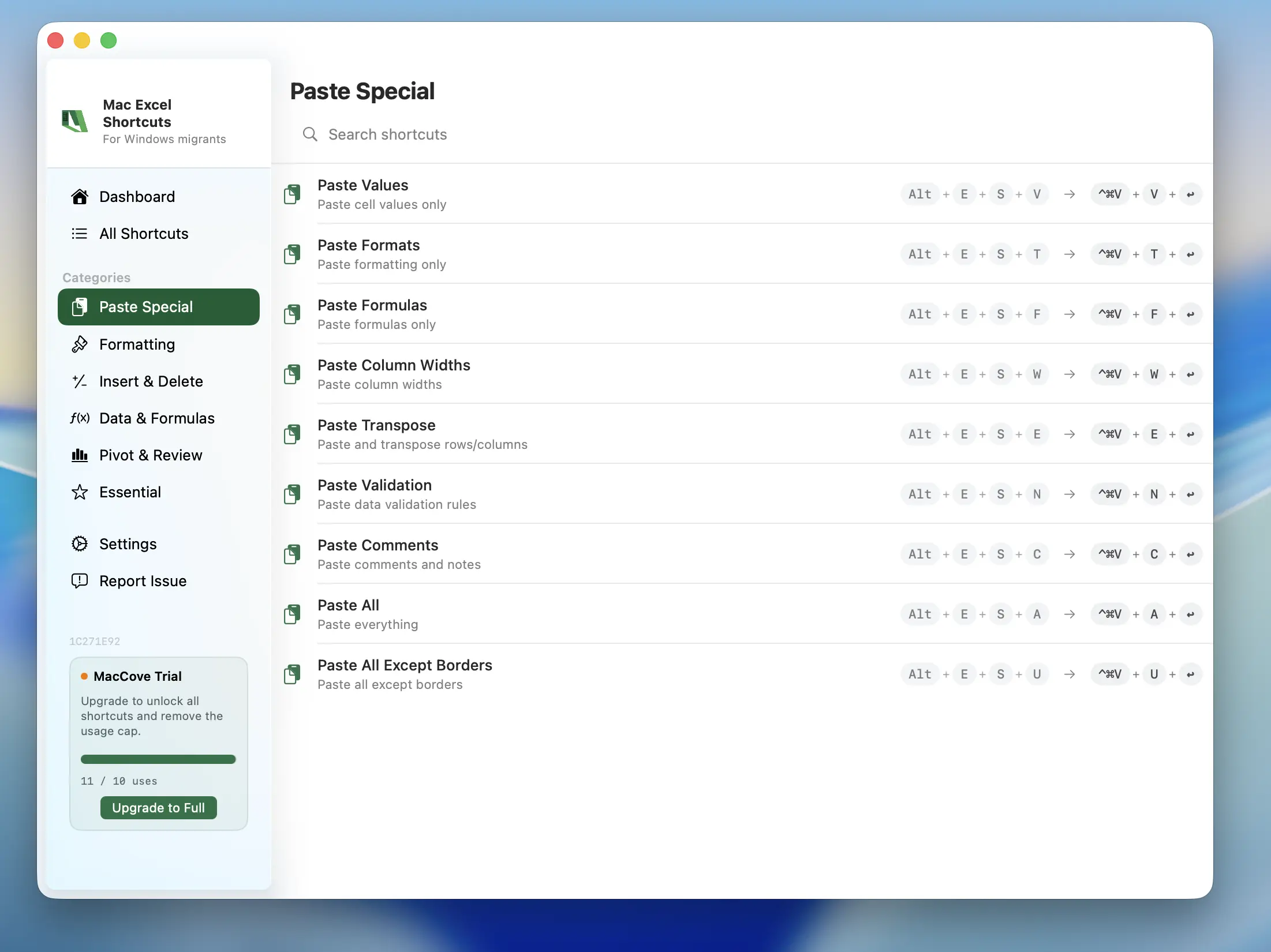
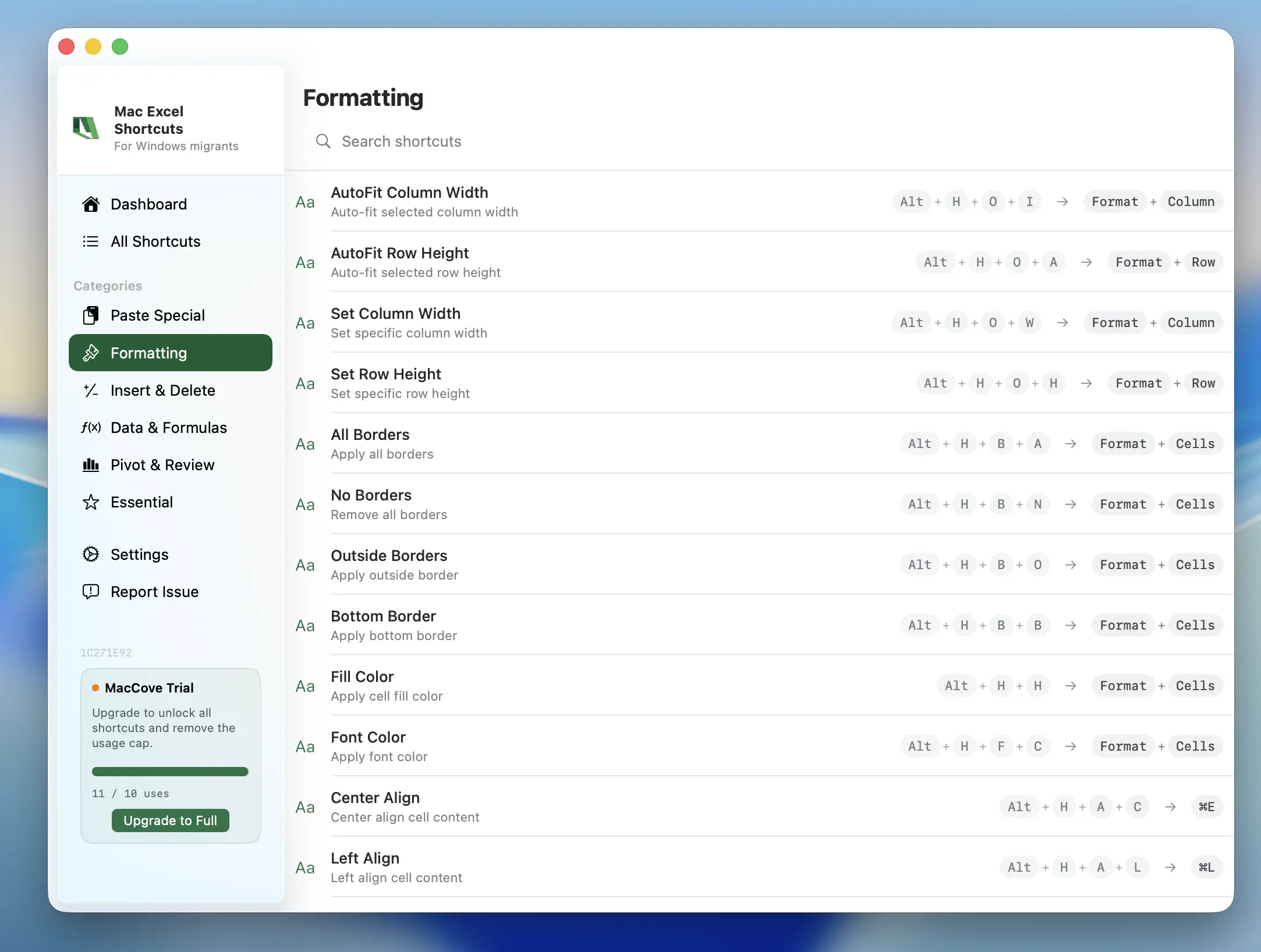
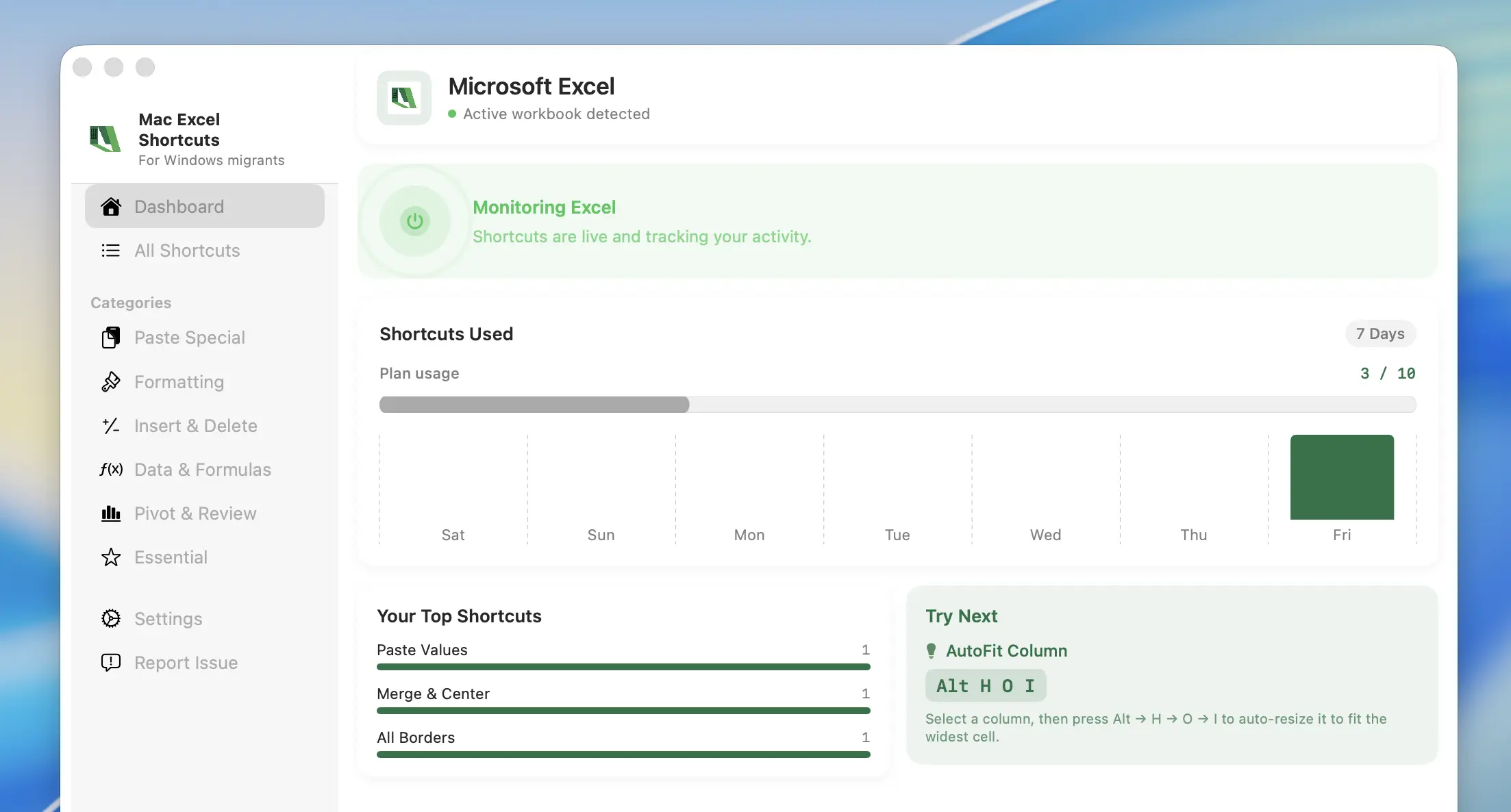
Mac Excel Shortcuts app screenshot

Navigation & Data Shortcuts on Mac

Move through and organize your data without reaching for the mouse.

Alt+Enter
New Line in Cell
Start a new line within the same cell instead of moving to the next one.
++F
Toggle Filter Arrows
Turn column filter arrows on or off for the selected data range.
+
Open Filter List
Open the filter dropdown for the active column header.
+Alt+F
Freeze Panes
Lock the selected rows and columns in place while you scroll through large sheets.
+Shift+L
Sort Ascending
Sort the selected range without breaking adjacent table columns.
Ctrl+D
Fill Down
Fill the selected cells with the content from the cell above, same as the fill handle.

Set It Up in Under a Minute

From download to full native navigation shortcuts, in three steps.

1
Download the App
Download the DMG directly. Installation takes seconds and requires zero setup.
2
Provide Permissions
Grant Accessibility and Input Monitoring so your keyboard shortcuts can reach Excel.
3
Open Excel and Navigate
Open Excel and use your Windows navigation shortcuts exactly as before.

Questions & Answers

Everything you need to know about Excel navigation shortcuts on your Mac.

Mac Excel Shortcuts is available on macOS 14.0+ (Sonoma and above).
Yes — MacCove is free to download and use for up to trial usage limits or 7 days. For unlimited shortcuts, advanced actions, cloud sync, and team sharing, upgrade to for $4.99/month or $49.99/lifetime.
No, each license covers only one Mac for now.
Yes — all shortcuts run locally on your device upto 24 hours in trial period and 7 days post upgrade. They don't require an internet connection as part of our local-first architecture.
We do not collect any data.
Yes — Refer two people to Mac Excel Shortcuts, and get 50% on your upgrade.