Why and How to give Permissions to Mac Excel Shortcut
Mac Excel Shortcuts app helps you work faster in Microsoft Excel by letting you trigger ribbon commands, navigate menus, and execute actions entirely from the keyboard. To do this reliably, macOS requires two privacy permissions:
Accessibility
Input Monitoring
These permissions are requested by many productivity tools for Mac, including keyboard launchers, automation tools, and accessibility software.
When you start off with your newly installed app, your app will look something like this:
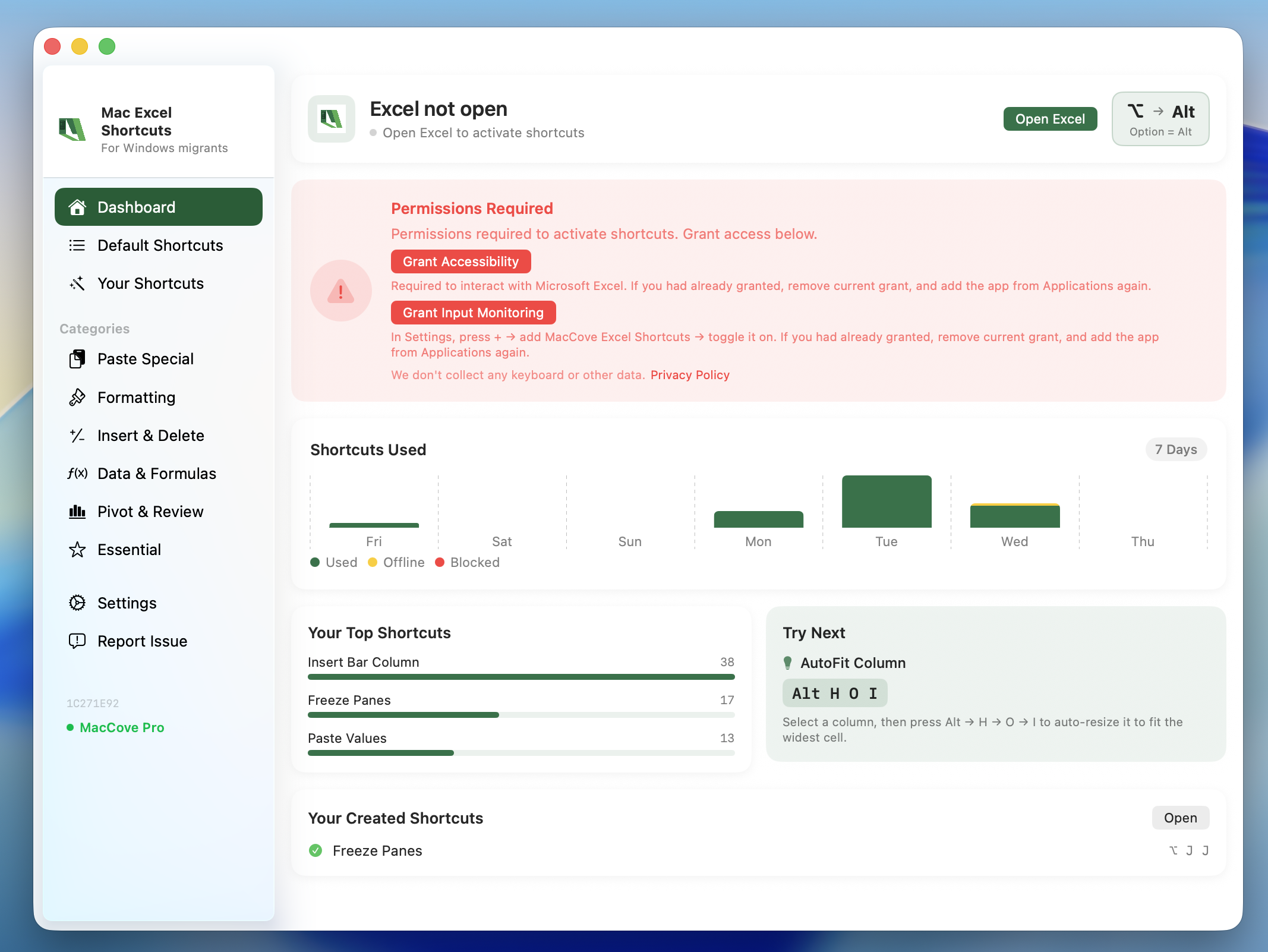
What are these permissions?
Accessibility
Accessibility permission allows an app to interact with the user interface of other applications.
Mac Excel Shortcuts app uses this permission to:
Navigate the Excel ribbon using the keyboard
Open menus and dialog boxes
Trigger ribbon commands
Move focus between UI elements
Click interface elements when no keyboard shortcut exists
Automate repetitive navigation inside Excel
Without Accessibility permission, macOS blocks one application from controlling another application’s interface.

Input Monitoring
Input Monitoring allows an app to detect keyboard events.
Mac Excel Shortcuts app uses this permission to:
Detect when you press one of your configured shortcut keys
Listen for global hotkeys even while Excel is the active application
Instantly trigger the corresponding Excel action
The app does not record what you type into documents, passwords, or websites. It only listens for the specific shortcut combinations you’ve configured so it knows when to activate an Excel command.
Without Input Monitoring permission, macOS will not allow the app to receive your keyboard shortcuts outside of its own window.
Why are both permissions required?
The two permissions perform completely different jobs.
Permission
Purpose
Accessibility
Control Excel’s user interface
Input Monitoring
Detect your shortcut key presses
Think of it like this:
You press ⌃⌥H
Input Monitoring lets Mac Excel Shortcuts app detect that key combination.
Accessibility lets the app perform the requested action inside Microsoft Excel.
Without either permission, the workflow breaks.
How to grant the permissions
Mac OS does not allow applications to request for Input Monitoring permission by default, therefore, users need to explicitly grant permissions for Mac Excel Shortcuts app. Please follow these steps.
Step 1
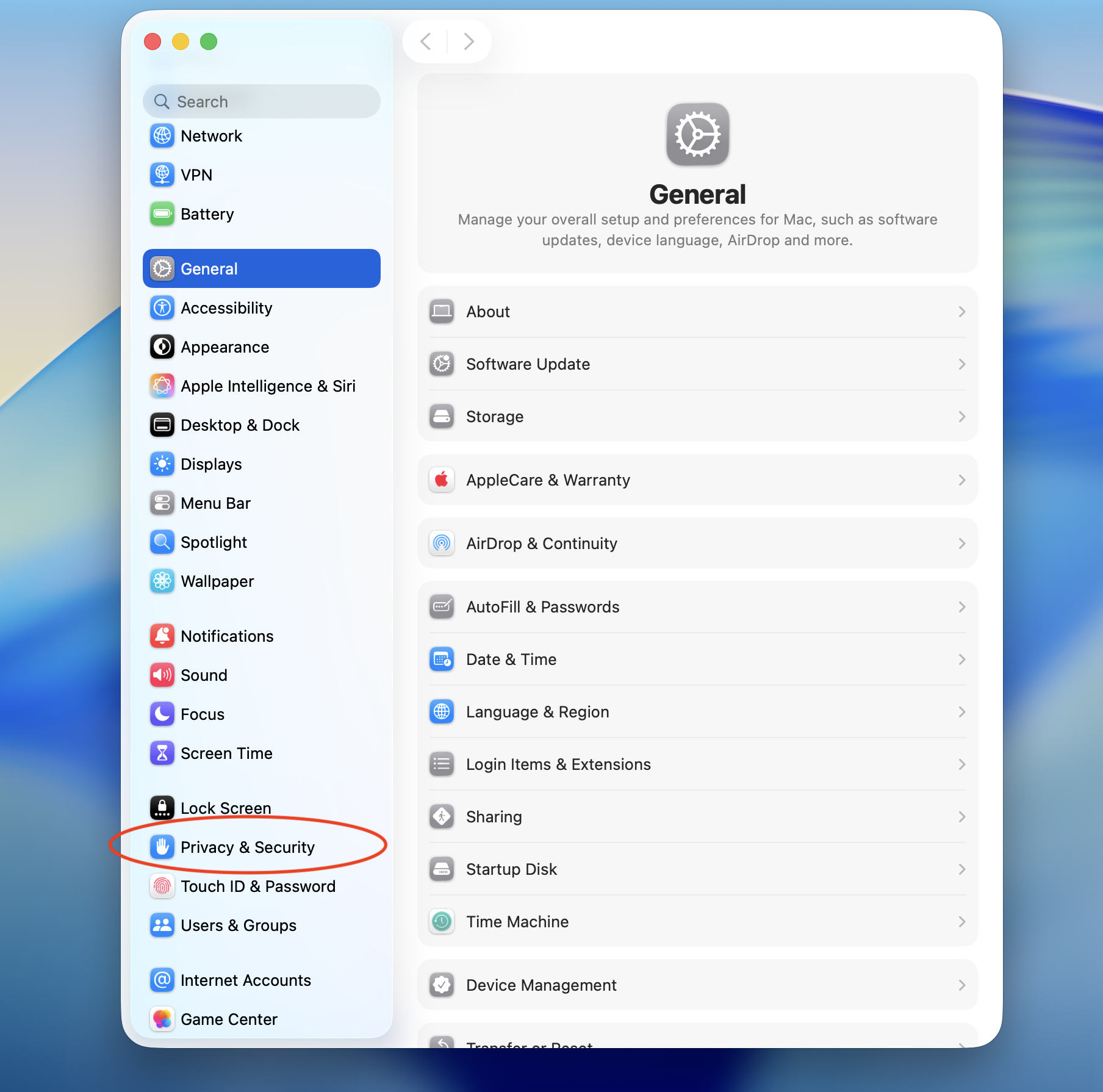
Open System Settings.
Step 2
Navigate to:
Privacy & Security
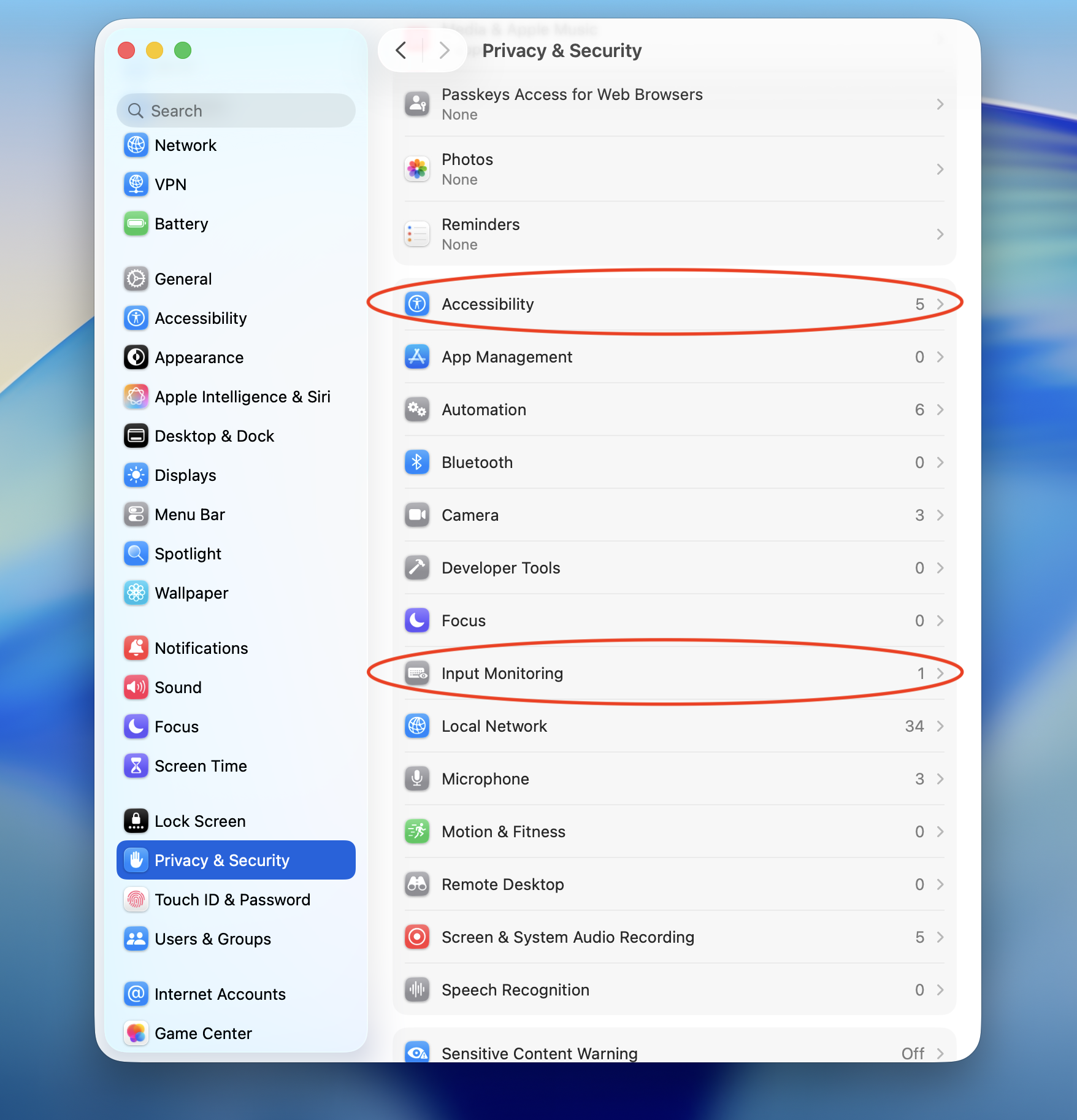
Accessibility
Select Accessibility.
Find Mac Excel Shortcuts app in the list.
Enable the toggle.
If it isn’t listed:
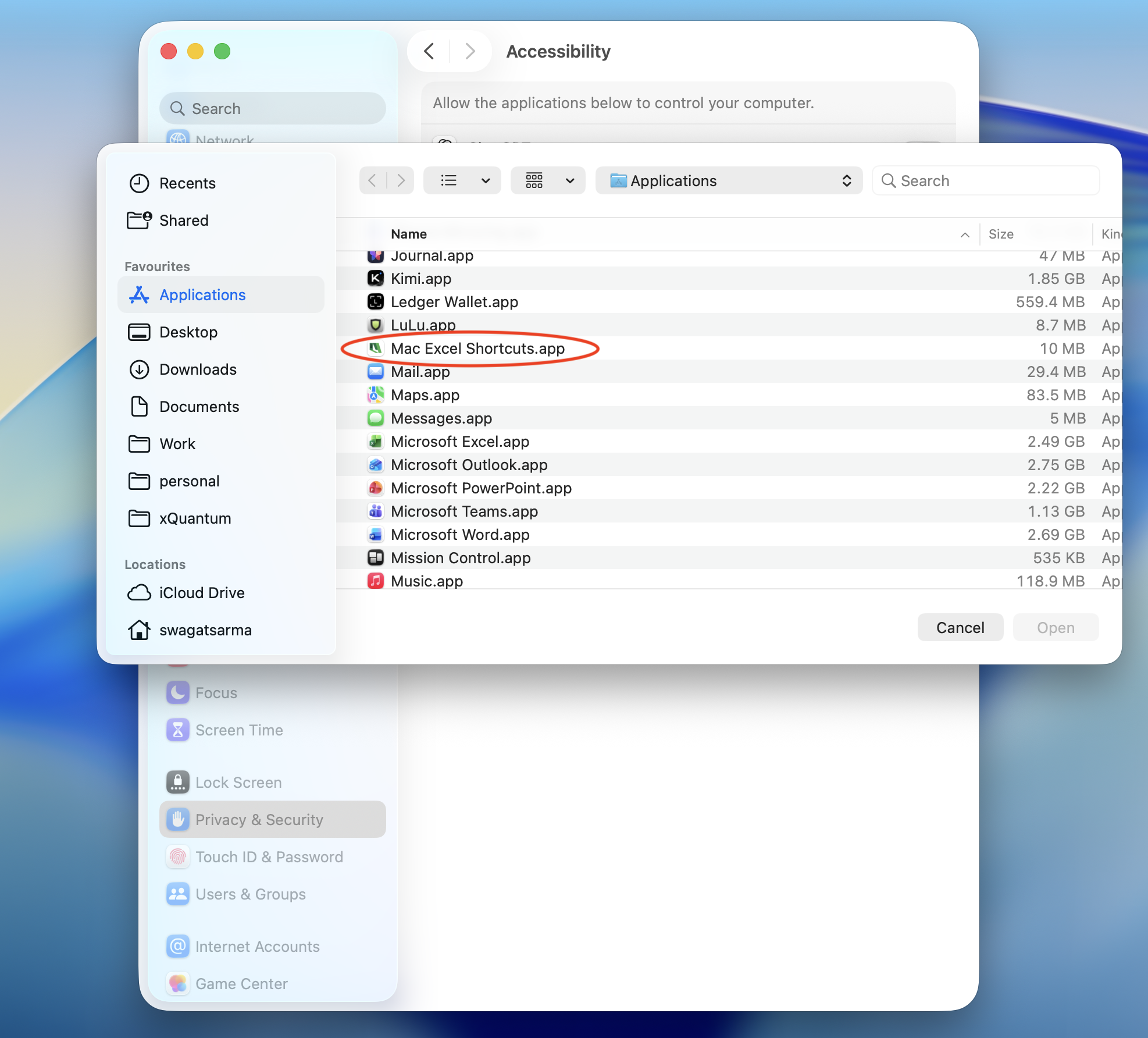
Click the + button.
Browse to Applications.
Select Mac Excel Shortcuts app.
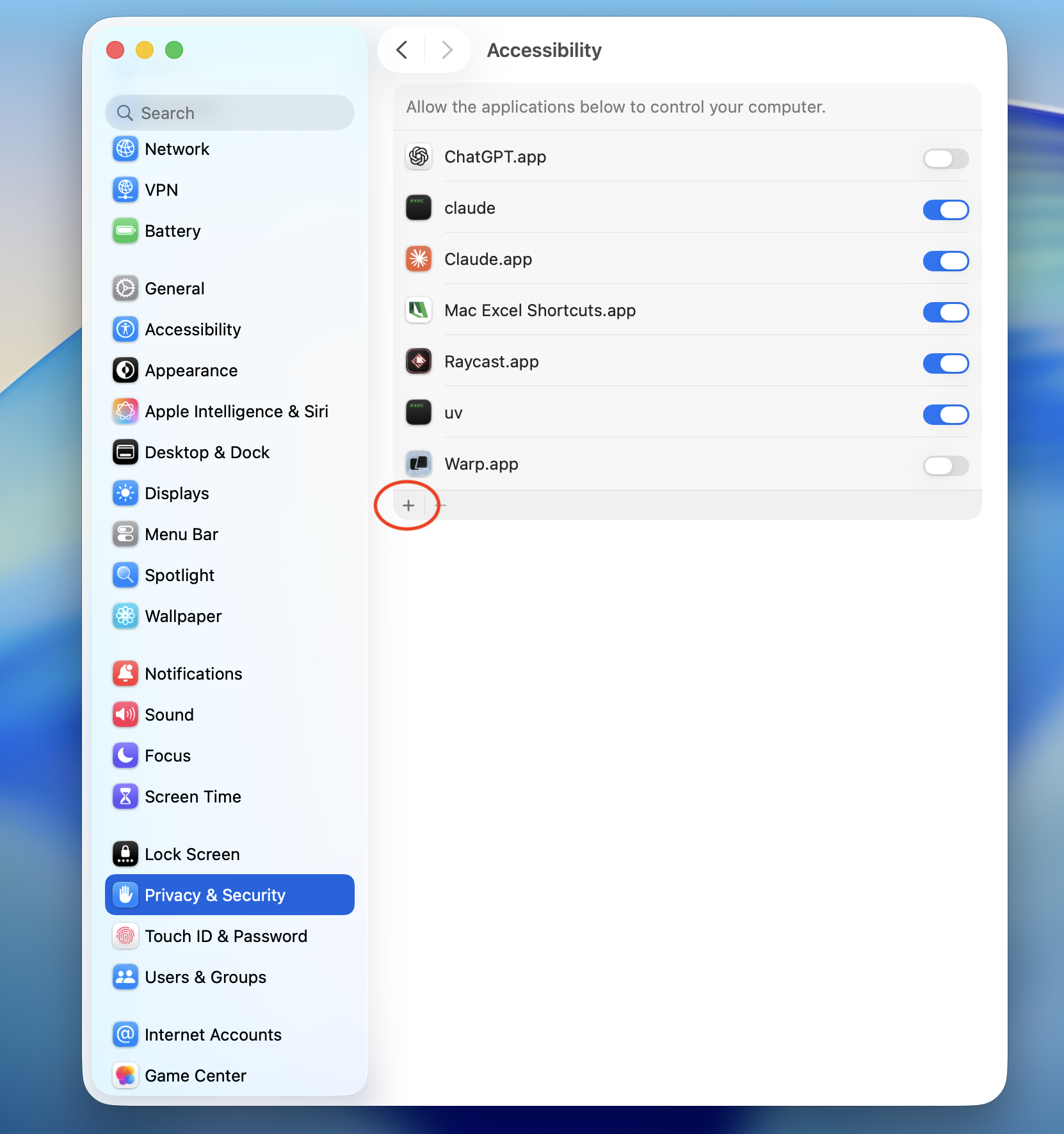
Input Monitoring
Return to Privacy & Security.
Open Input Monitoring.
Enable Mac Excel Shortcuts app.
If prompted, quit and reopen the application.
How to verify everything is working
After granting both permissions:
Open Microsoft Excel.
Launch Mac Excel Shortcuts app.
Press one of your configured shortcuts.
Excel should immediately execute the corresponding command.
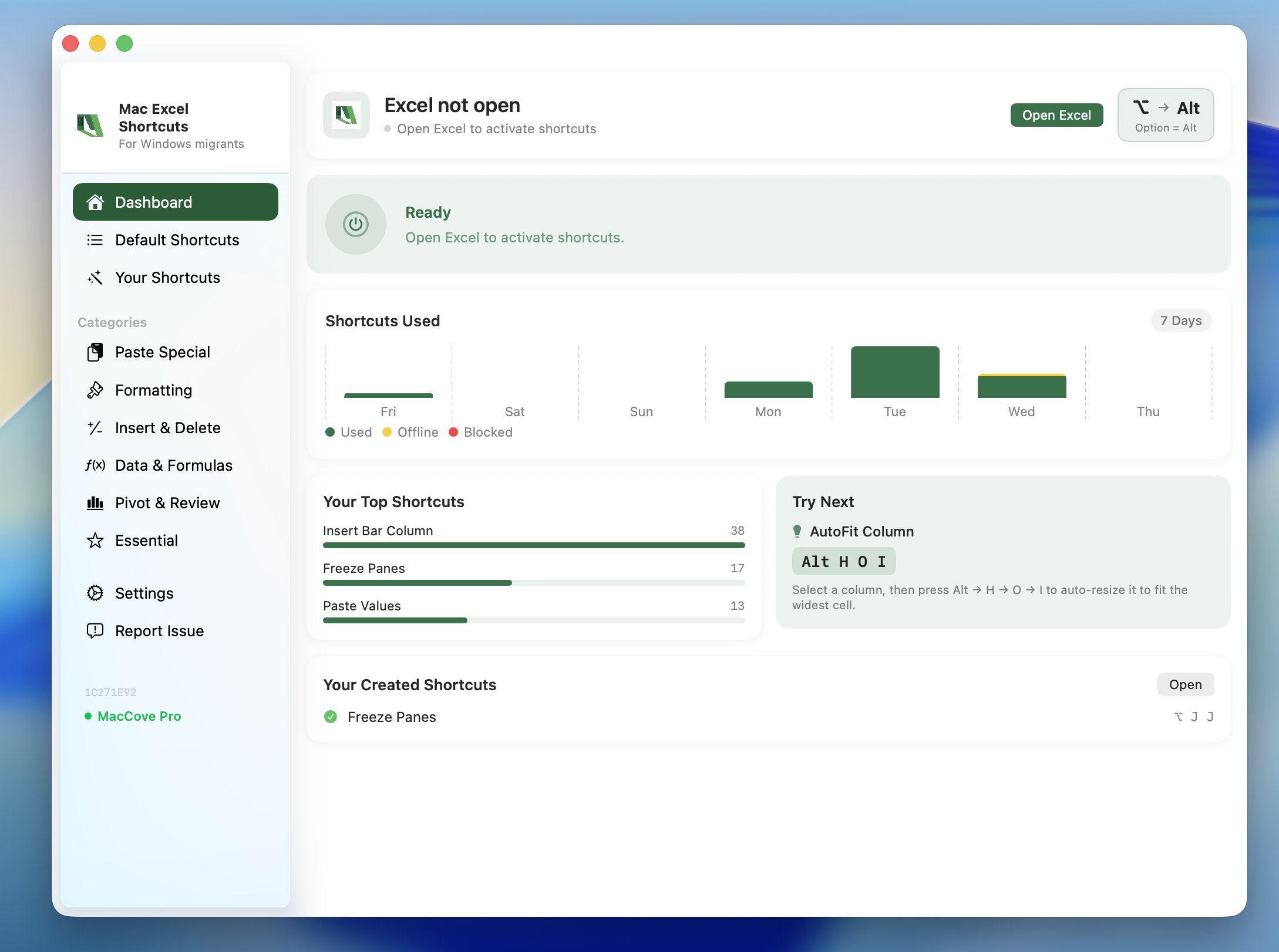
You will also be able to see the success /failure of the shortcuts on the app.
If nothing happens:
Verify both permissions are enabled.
Restart Mac Excel Shortcuts app.
Restart Microsoft Excel if necessary.
Once you are done adding the permissions, your app will look like this:
Is this safe?
Yes.
Mac Excel Shortcuts app requests only the permissions necessary to automate Microsoft Excel.
The application:
Uses Accessibility solely to interact with Excel’s interface.
Uses Input Monitoring only to detect your configured shortcut keys.
Does not require Full Disk Access.
Does not require Screen Recording.
Does not access your files or spreadsheets unless you explicitly interact with them in Excel.
All permission handling follows Apple’s privacy framework, and you remain in full control. You can revoke either permission at any time from System Settings → Privacy & Security.
Frequently Asked Questions
Why doesn’t the app work without these permissions?
macOS intentionally prevents applications from controlling other apps or listening for global keyboard shortcuts unless the user explicitly grants permission.
Why do I have to restart the app after enabling permissions?
macOS applies certain privacy permissions only when an application starts. Restarting ensures the new permissions are recognized.
What if I don't want the app to be on while I am doing sensitive work?
Mac Excel Shortcuts app provides the functionality of Pause which pauses any keyboard capture on the app. Users can use this feature to force the app to stop monitoring keys.
Can I revoke the permissions later?
Yes. Simply open System Settings → Privacy & Security, disable the permission, and restart the app. Mac Excel Shortcuts app will stop using the corresponding functionality.
Why do other automation apps ask for the same permissions?
Applications that automate other software, provide global keyboard shortcuts, or enhance accessibility typically require these same permissions because they rely on the same macOS security APIs.
Summary
Accessibility and Input Monitoring are essential for Mac Excel Shortcuts app to deliver a seamless keyboard-first Excel experience.
Accessibility allows the app to operate Excel’s interface.
Input Monitoring allows it to recognize your shortcut keys.
Together, these permissions enable fast, reliable Excel automation while keeping you in complete control of your Mac’s privacy settings.