Mac Excel Shortcuts vs Keyboard Maestro: Which Is Better for Excel on Mac?
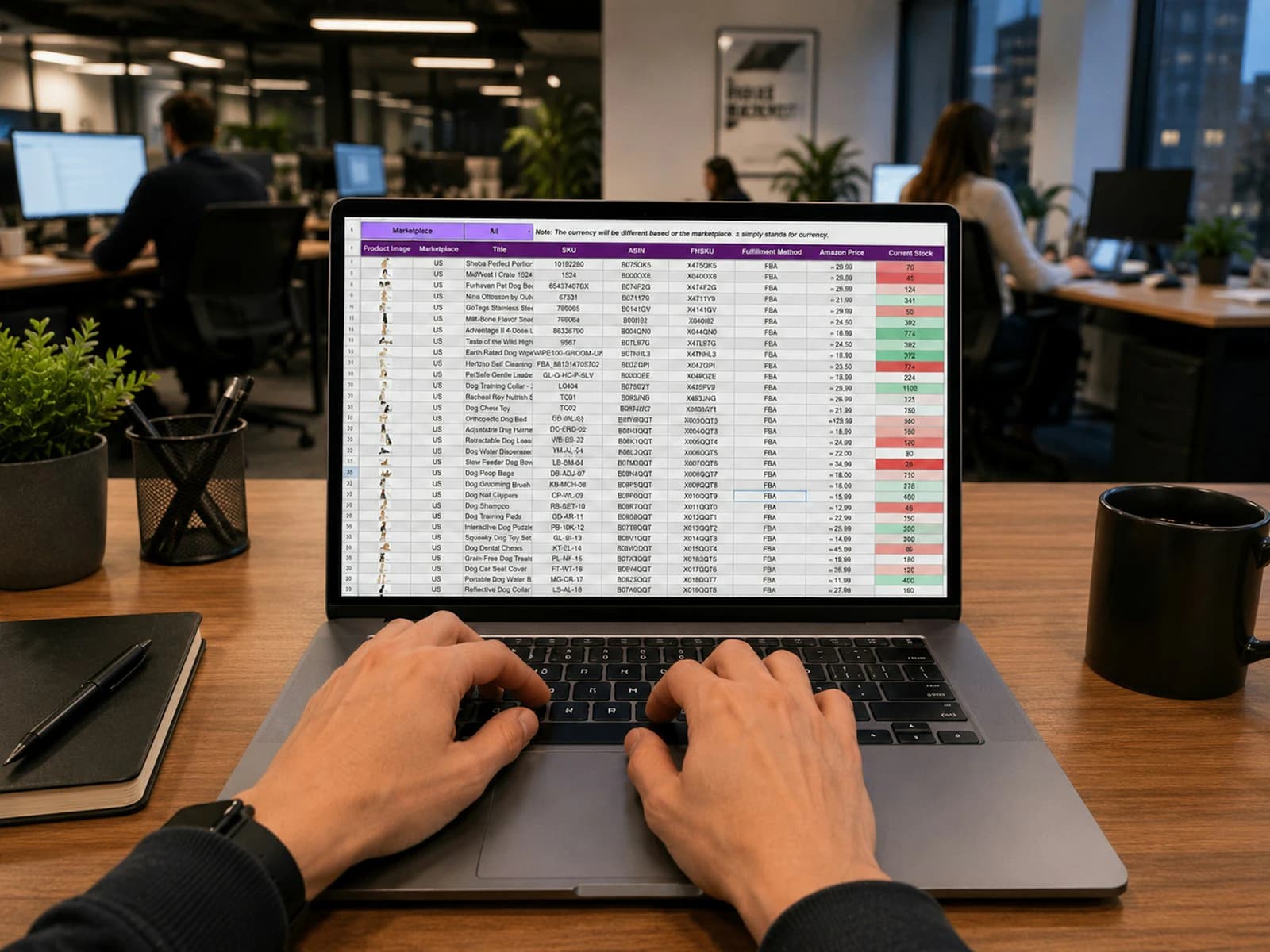
Keyboard Maestro is the tool power users reach for when they want to automate a Mac, and it is the most capable "do it yourself" way to bring Windows Excel shortcuts to a Mac. It is also a macro builder, not a shortcut app, so the real question is whether you want to build and maintain the shortcuts or simply use them. This guide compares Mac Excel Shortcuts with Keyboard Maestro for Excel on Mac.
Both are paid and mature. Keyboard Maestro is a one-time purchase for automating almost anything on a Mac. Mac Excel Shortcuts does one thing: it makes the Windows Excel sequences you already know work in Excel for Mac.
Quick answer: Choose Keyboard Maestro ($36 one-time, free trial) if you enjoy automation, want macros that reach beyond Excel, and are happy to build and maintain your own Windows-style sequences. Choose Mac Excel Shortcuts ($49 one-time or $4.99/month, free trial) if you just want Alt, E, S, V (Paste Values), Alt, H, M, C (Merge & Center) and the rest to work in Excel without building anything. Keyboard Maestro can do the same job, but each sequence is a macro you write, and a few dozen is a weekend project.
Mac Excel Shortcuts vs Keyboard Maestro at a glance
| Mac Excel Shortcuts | Keyboard Maestro | |
|---|---|---|
| Price | $49 one-time or $4.99/month (free trial: 7 days or 10 shortcuts) | $36 one-time (free trial) |
| Built for | Windows Excel shortcuts on Mac | Macros and automation for the whole Mac |
| Windows Ribbon sequences (Alt, H, V, V) | Built in | Possible with nested macro groups you build |
| Setup for about 20 Excel commands | Install and grant permissions | 20 to 40 minutes per sequence, a weekend for a few dozen |
| Automation beyond Excel | No | Yes, its main strength |
| Permissions | Accessibility, Input Monitoring | Accessibility (app and Engine), plus Input Monitoring if listed |
| Maintenance | Handled by the app | You maintain your own macros |
Prices were checked on each vendor's site in October 2026 and may change.
What Keyboard Maestro is good at
Keyboard Maestro has been a Mac automation staple for many years. Anything you can describe as steps, it can run:
Multi-step macros. Select a menu item, wait for a window, type text, click a button, repeat.
Many triggers. Hotkeys, typed strings, schedules, app launches, USB devices, and more.
Per-app macro groups. Macros can be limited to Excel so they never fire anywhere else.
Control flow. Conditions, loops, variables and AppleScript or shell actions for the hard cases.
Menu selection by name. The Select or Show a Menu Item action is tolerant of small differences in labels, so macros break less often when Microsoft tweaks a menu.
If you want to automate your whole Mac, Keyboard Maestro is hard to beat for the price, and Excel shortcuts are one of many things it can do.
Where Keyboard Maestro takes work: Windows Ribbon sequences
Windows Excel lets you press Alt and then a series of letters to run any Ribbon command, such as Alt, H, V, V. Native Excel for Mac has optional Ribbon KeyTips in recent Microsoft 365 builds, but coverage is partial. Alt, E, S, V for Paste Values, for example, does not work.
To rebuild a sequence in Keyboard Maestro, the usual approach uses nested macro groups that activate for a single action:
A macro limited to Excel listens for Option and activates an "Alt" group for one action.
Inside that group, pressing E activates a second group, then S a third.
Pressing V in the last group runs the Paste Values macro: type ⌃⌘V, pause briefly, type V, press Return, or select the menu item by name.
A timeout and a cancel path stop the groups from staying active if you change your mind.
That is clean, and it is the best DIY route available. It is also a lot of structure for one shortcut. For Ribbon-only commands, such as Merge & Center, you first assign a shortcut under Tools → Customize Keyboard in Excel, then have the macro press it. Budget 20 to 40 minutes per sequence until you have templates, and a weekend for a few dozen.
What Mac Excel Shortcuts does differently
Mac Excel Shortcuts comes with the Windows sequences already built. Install it, grant the permissions macOS asks for, and type Alt, E, S, V, Alt, H, M, C or Alt, W, F, F the way you would on Windows. The Mac Excel shortcut cheat sheet lists the commands.
In practice:
No macros to build or debug. No nested groups, timeouts or pauses to tune.
No Customize Keyboard detour for Ribbon-only commands.
Maintained for you. When Excel changes, the app is updated. With Keyboard Maestro, you are the maintainer of your own Windows-shortcut layer.
Narrow by design. It will not automate Finder, Mail or the rest of your Mac. That is what Keyboard Maestro is for.
The same job in both: Paste Values and Merge & Center
Paste Values (Alt, E, S, V)
Keyboard Maestro: create an Excel-only macro group, nested "activate for one action" groups for Option, E and S, and a final macro that types ⌃⌘V, pauses, types V and presses Return. About 20 to 40 minutes the first time.
Mac Excel Shortcuts: copy, select the destination, type Alt, E, S, V.
Merge & Center (Alt, H, M, C)
Keyboard Maestro: assign a shortcut to Merge & Center in Excel's Customize Keyboard, then build a macro that presses it when you type Option, H, M, C.
Mac Excel Shortcuts: type Alt, H, M, C.
One or two sequences is a pleasant afternoon of tinkering. Fifty is a hobby, and the hobby never ends, because Excel keeps changing.
Setup time and ongoing maintenance
| Task | Keyboard Maestro | Mac Excel Shortcuts |
|---|---|---|
| Install | Minutes, plus Accessibility for the app and Engine | Minutes, plus Accessibility and Input Monitoring |
| First Excel sequence | 20 to 40 minutes | Nothing to build |
| Each extra sequence | A new macro to build and test | Already included |
| After Excel or macOS updates | Re-test your macros | App updates handle it |
Keyboard Maestro needs Accessibility permission for both Keyboard Maestro and the Keyboard Maestro Engine, and Input Monitoring if macOS lists it. Mac Excel Shortcuts needs Accessibility and Input Monitoring. If shortcuts stop working after a macOS update, check System Settings → Privacy & Security first. Our guide to giving Mac Excel Shortcuts the right permissions covers the app side.
One trap with any Option-based sequence: Option is also a typing key on a Mac. Option+V types a square-root sign and Option+H types a dot accent. A macro that misfires leaves odd characters in your cells, so test on a scratch sheet first. Also remember that macros which open Paste Special and then type a letter depend on the dialog opening fast enough, which can fail on a busy Mac or a large workbook.
Cost over time
Keyboard Maestro: $36 one-time for version 11, with a free trial and no subscription. Your other cost is the time spent building and maintaining macros.
Mac Excel Shortcuts: $49 one-time or $4.99/month, with a free trial of 7 days or 10 shortcuts, whichever comes first.
Keyboard Maestro is cheaper, and it earns that back if you automate other things with it. For Excel shortcuts alone, compare the $13 price gap with the hours you would spend building and fixing macros.
Can you use both?
Yes. Keep Keyboard Maestro for automation across your Mac, such as filing, text expansion and app launching, and use Mac Excel Shortcuts for the Windows Excel sequences. They do not conflict as long as you do not bind the same Option-based sequences in both, or alongside Excel's own KeyTips.
Which should you choose?
| If you | Choose |
|---|---|
| Want to automate many tasks across your Mac | Keyboard Maestro |
| Enjoy building macros and want full control | Keyboard Maestro |
| Want Alt, E, S, V and other Windows sequences to just work | Mac Excel Shortcuts |
| Do not want to build or maintain macros | Mac Excel Shortcuts |
| Want both layers handled | Keyboard Maestro for automation, Mac Excel Shortcuts for Excel |
FAQs
Can Keyboard Maestro make Windows Alt shortcuts work in Excel for Mac?
Yes. It is the most capable do-it-yourself option, using nested macro groups and menu actions. The cost is that you build and maintain each sequence yourself.
How much does Keyboard Maestro cost?
Version 11 is a $36 one-time purchase with no subscription, and a free trial is available.
Is Keyboard Maestro better than Mac Excel Shortcuts?
It depends on the goal. Keyboard Maestro is better if you want to automate many tasks beyond Excel. Mac Excel Shortcuts is better if you only want the Windows Excel sequences to work with no setup.
Do I need Keyboard Maestro if I use Mac Excel Shortcuts?
Not for Excel sequences. You only need it if you want automation beyond Excel.
Why did my Keyboard Maestro macros stop working in Excel?
Check the Accessibility permission first, for both Keyboard Maestro and its Engine. If that is fine, a menu name or dialog timing may have changed, so re-test the macro on a scratch sheet.
Related guides
Karabiner vs BetterTouchTool vs Keyboard Maestro: Which Is Best for Windows Excel Shortcuts on Mac?
How to Make Windows Ribbon Sequence Keys Work in Excel for Mac?