How Do You Transition from Windows Excel Shortcuts to Mac?
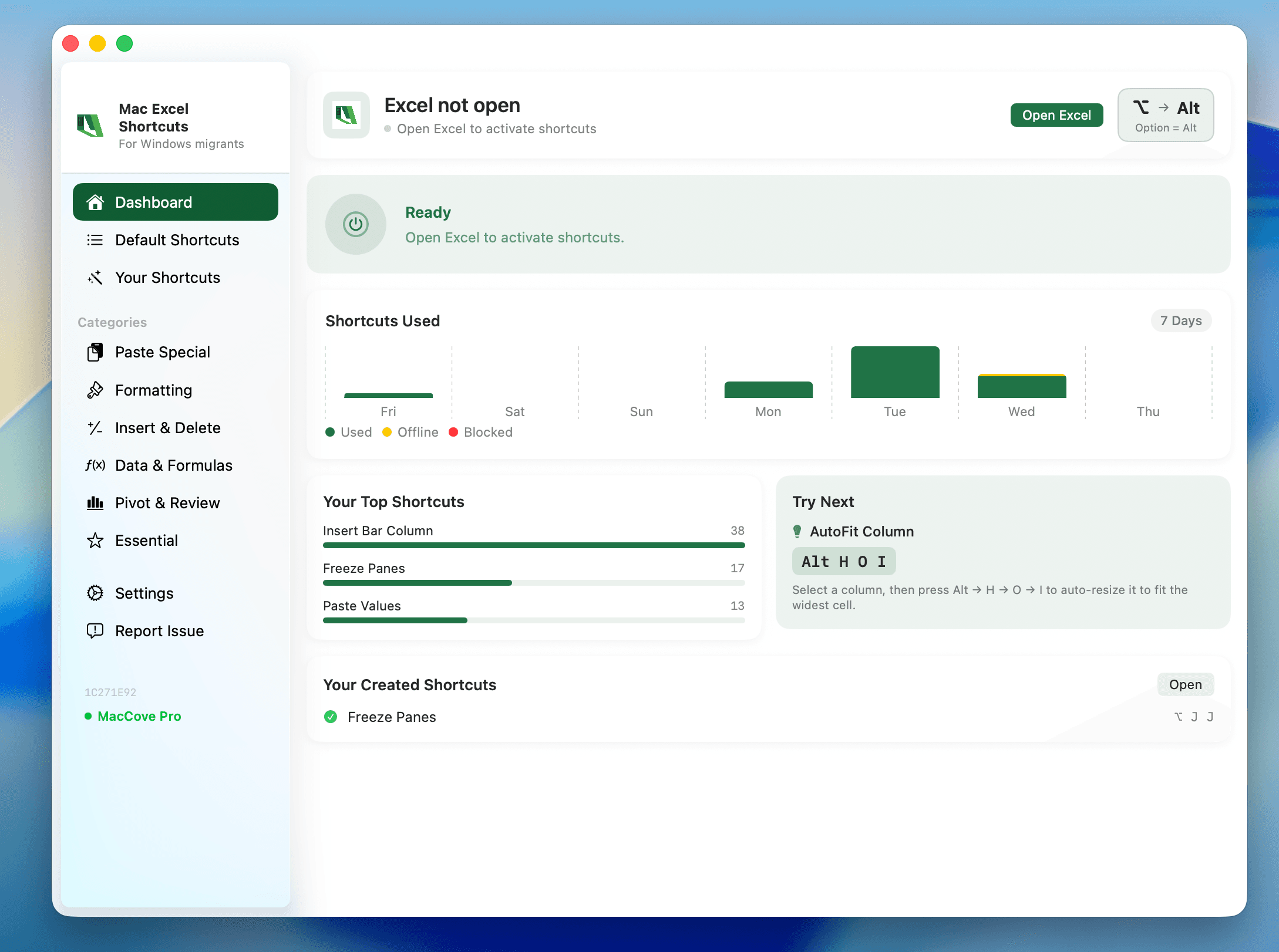
Quick Answer: The technical shortcut mapping is the easy part — you can look that up. The hard part is retraining your fingers over 2–3 weeks of daily friction. Below is the mindset shift, plus the 10 shortcuts that cause the most repeated stumbles for Windows-to-Mac migrators. For the complete key-by-key mapping table, see the full conversion guide linked below. Mac Excel Shortcuts app exists specifically to paper over the shortcuts with no Mac equivalent, like Remove Duplicates, during that adjustment window.
Windows behavior
On Windows, Ctrl is the universal modifier for nearly every Excel command, Alt drives Ribbon Access Keys, and F4 repeats your last action. Most Windows Excel power users can operate almost entirely without touching the mouse.
Mac behavior
On Mac, Cmd replaces Ctrl for most commands, Ctrl is repurposed for a handful of legacy-compatible shortcuts, Option takes over some Windows Alt functions, and there's no Ribbon Access Key system at all. The net effect: roughly 80% of your shortcuts "just work" with Ctrl swapped for Cmd, and the remaining 20% behave differently enough to genuinely trip you up.
Why this is a habit problem, not a lookup problem
Everyone who switches does the same thing first: bookmarks a conversion table, maybe prints it. That solves the knowing problem on day one. It does nothing for the doing problem on day twelve, when your hand automatically reaches for Ctrl+Alt+V and gets the wrong thing. The fix isn't more lookups — it's deliberately over-practicing the handful of shortcuts you use most until the new keystroke is automatic.
A useful trick: for your first two weeks, say the Mac shortcut out loud before you press it, every single time, even when you're sure. It sounds silly and it works.
The 10 highest-friction shortcuts
Ctrl+Alt+V → Cmd+Option+V (Paste Special) — the single most-reported stumble.
Ctrl+Arrow → Fn+Cmd+Arrow (jump to edge of data) — the extra Fn key is the part people forget.
Ctrl+PageUp/PageDown → Option+Right/Left Arrow (switch worksheet tabs) — not even the same modifier family.
Alt-based Ribbon Access Keys → no equivalent — the biggest structural loss.
F4 → Cmd+Y or Cmd+T (repeat last action / toggle absolute references) — splits into two different Mac shortcuts depending on context.
Ctrl+
→ Cmd+(show formulas) — carries over, but people don't trust it.Ctrl+Shift+L stays Ctrl+Shift+L (AutoFilter) — trips people up because it didn't change.
Ctrl+1 → Cmd+1 (Format Cells) — works fine, but competes with macOS's own Cmd+1 in other apps.
Windows Freeze Panes custom binding → no native equivalent on Mac at all.
Ctrl+Z / Ctrl+Y for undo/redo → Cmd+Z / Cmd+Shift+Z — redo's modifier changes from Y to Shift+Z.
A better Mac-native workflow, not just a translation
Use Mission Control / Split View for side-by-side workbooks instead of replicating Windows window-snapping.
Let the menu bar be your fallback search tool.
Accept that Ribbon Access Keys are gone for good and invest 20 minutes memorizing direct Cmd shortcuts for your top 10 daily commands.
Where a shortcut layer helps during the transition
For the shortcuts that have no Mac equivalent at all, Mac Excel Shortcuts app exists specifically to paper over that 20% gap. Most people use it as training wheels for the first month, then keep the two or three bindings that saved them the most time.
FAQs
How long does the transition actually take?
Most people report the bulk of the friction resolves in 2–3 weeks of daily use.
Should I try to remap Mac to match Windows exactly?
For shortcuts with a clean 1:1 Cmd-for-Ctrl swap, no. For the handful with no native Mac equivalent, remapping is genuinely useful.