Why We Built the Mac Excel Shortcuts app
Buying a Mac is an easy decision. Keeping it as your primary work machine is often much harder.
The hardware is exceptional. The battery lasts all day. The display is gorgeous. The trackpad is in a league of its own. For many professionals, it feels like the computer they’ve always wanted to work on.
And then they open Excel.
Not because Excel on the Mac is a poor application—it isn’t. Microsoft has spent years making it a capable, polished version of Excel that meets the needs of millions of users. The frustration comes from somewhere far less obvious, but far more personal: the years of muscle memory you’ve built on Windows suddenly stop working.
The Productivity You Lose Isn’t Measured in Seconds
If you’ve spent five, ten, or twenty years using Excel every day, you don’t consciously remember most of your shortcuts anymore.
You don’t stop and think about how to Paste Values, insert rows, apply borders, sort a table, AutoFit a column, or freeze panes. Those actions have become instinctive. Your fingers know where to go long before your brain has finished processing the task.
That’s what separates experienced Excel users from beginners—not simply knowing more features, but being able to execute them without interrupting their train of thought.
The moment you move to a Mac, that rhythm begins to break.
Every few minutes, you reach for a shortcut you’ve used thousands of times, only to realise it doesn’t exist anymore. You pause, glance at the Ribbon, move your hand from the keyboard to the trackpad, click through menus to find the command, then return to the keyboard and continue working.
One interruption doesn’t matter.
Hundreds of them do.
Excel Is a Game of Tiny Repetitions
A typical day in Excel isn’t made up of a handful of big actions. It’s made up of hundreds—sometimes thousands—of tiny ones.
Paste Values.
Insert rows and columns.
Format cells.
Apply borders.
Sort and filter data.
Create tables.
Freeze panes.
Hide and unhide columns.
AutoFit widths.
Build PivotTables.
Navigate between sheets.
Open Find & Replace.
Conditional Formatting.
Text to Columns.
Name Manager.
Each of these takes only a second.
But together, they define how quickly you work.
When every other action requires taking your hand off the keyboard, finding the right Ribbon command, and then returning to where you were, Excel stops feeling like an extension of your thoughts. Instead, it starts demanding your attention.
The real cost isn’t a few extra clicks.
It’s the constant interruption to your concentration.
Why Learning New Shortcuts Isn’t the Real Answer
People often say, “Just learn the Mac shortcuts.”
And eventually, many users do.
But replacing a decade of muscle memory isn’t like memorising a new cheat sheet.
Your brain has spent years building automatic patterns. Every day you’ve reinforced the same sequences until they became almost subconscious.
That’s why, even months after switching, many experienced Excel users still instinctively press Alt, expecting the familiar Ribbon KeyTips to appear.
The problem isn’t that Mac shortcuts are bad.
It’s that your existing workflow already works.
A Familiar Keyboard, Right From Day One
Mac Excel Shortcuts app was built around one simple idea: your keyboard shouldn’t have to start over just because your computer did.
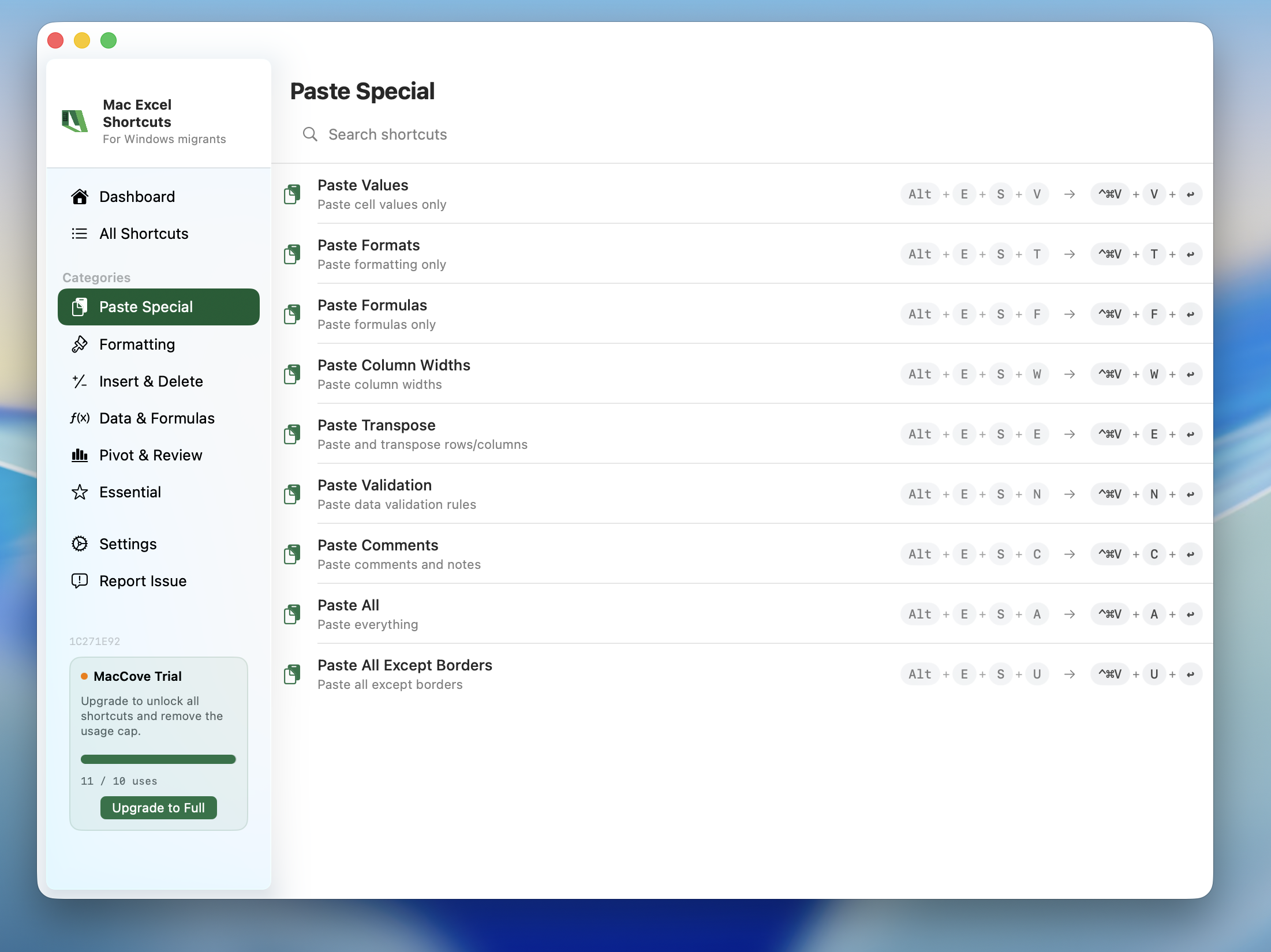
The app comes with hundreds of pre-built Windows Ribbon shortcuts already mapped to Excel on macOS, so the commands you’ve used for years feel instantly familiar again.
That means you can continue using shortcuts for many of Excel’s most frequently used commands, including:
Paste Special and Paste Values
Sort and Filter
Freeze Panes
Cell Formatting
Borders and Fill Colours
Insert and Delete Rows or Columns
AutoFit Row Heights and Column Widths
Find & Replace
Conditional Formatting
PivotTables
Tables
Text to Columns
Name Manager
Workbook and Worksheet operations
And hundreds of other Ribbon commands used every day.
There’s nothing to memorise and nothing to configure before you start.
Install the app, open Excel, and the shortcuts you’ve relied on for years begin feeling familiar again.
Built for the Way Experienced Excel Users Actually Work
This isn’t about making Excel on the Mac behave exactly like Windows.
Excel on macOS is an excellent application in its own right.
It’s about removing one unnecessary source of friction for people who’ve already invested thousands of hours becoming efficient with Excel.
Your experience didn’t disappear when you bought a Mac.
Neither should your muscle memory.
Because Great Hardware Shouldn’t Come at the Cost of Productivity
Switching to a Mac should mean enjoying incredible hardware, longer battery life, quieter performance, and a desktop operating system that many people genuinely prefer.
It shouldn’t mean sacrificing the speed you’ve spent years developing in Excel.
Your keyboard shortcuts are more than a convenience—they’re part of how you think.
Mac Excel Shortcuts app simply lets you keep using them.