How to Copy and Paste on a Mac: Keyboard, Trackpad, Menu and Files
Copying and pasting on a Mac takes two steps: Command+C to copy and Command+V to paste. The keys are identical on a MacBook Air, MacBook Pro, iMac and Mac mini, and this guide also covers the trackpad, the menu bar, files and a Windows keyboard.
How do you copy and paste on a Mac?
Select the text or item, press Command+C to copy it, click where the content should land, then press Command+V to paste. Apple documents the same two steps for every Mac.
Copy and paste with the keyboard
- Select the text, image or item you want to copy.
- Press Command+C. Nothing visible happens, but the selection is now on the clipboard.
- Click where the content should go, such as a document, email or text field.
- Press Command+V. The copied content appears at the insertion point and the original stays in place.
How do you copy and paste with the trackpad or mouse?
Control-click (or right-click) the selected item and choose Copy, then Control-click the destination and choose Paste. Apple lists this shortcut menu as an alternative to the keyboard shortcuts.
A MacBook trackpad performs a secondary click with a two-finger click unless the setting was changed. Pick Copy from the menu that appears, move to the destination, and repeat the two-finger click to choose Paste.
How do you copy and paste from the menu bar?
Choose Edit, then Copy, in the menu bar of the active app; later choose Edit, then Paste, where the content belongs. Apple lists the Edit menu as a third route besides keys and right-click.
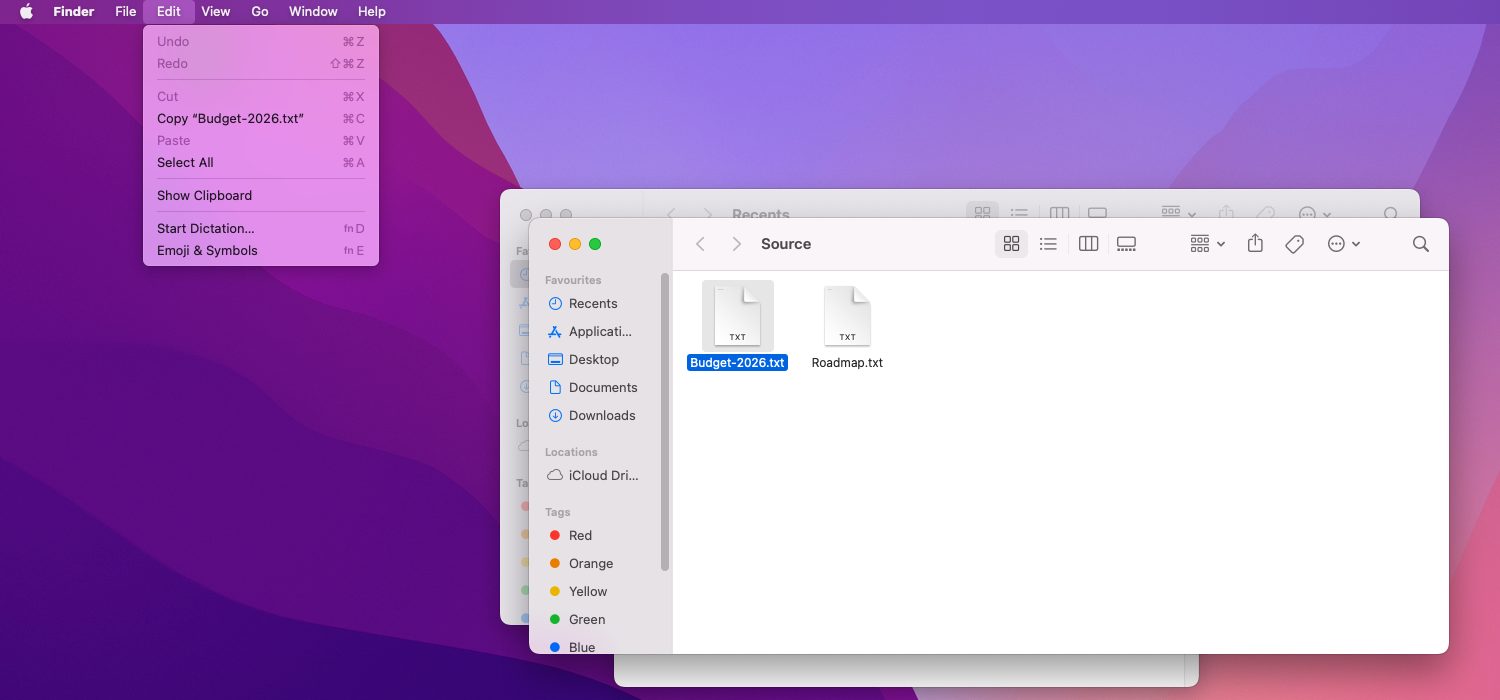
A greyed-out entry means the active app does not allow that action right now, and the matching shortcut will not work either. Apple says each app decides what it can cut, copy or paste.
How do you copy and paste files and folders in Finder?
Select the file or folder in Finder, press Command+C, open the destination folder and press Command+V. Finder places a duplicate there and leaves the original where it was.
Pasting into the same folder makes a second file with the word copy added to the name. To move the item instead of duplicating it, press Option+Command+V in the destination folder.
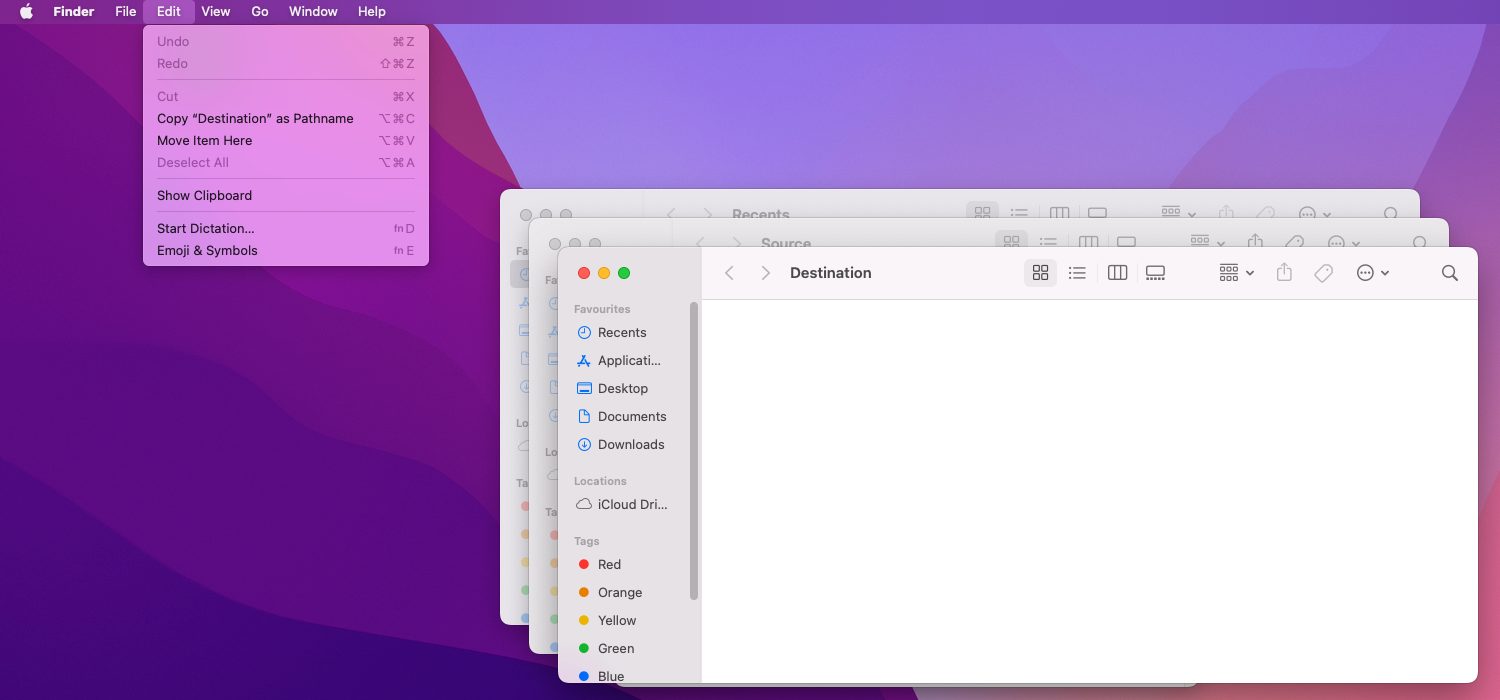
The full set of ways to move files, including drag and drop and Terminal, is in How to Copy, Cut and Paste on Mac: Every Shortcut and Method. Moving between drives is covered in Move vs Copy on a Mac.
How do you copy and paste on a Mac with a Windows keyboard?
Windows keyboards have no Command key. Apple’s guidance is to try the Windows logo key (or Ctrl) in its place, so Windows key plus C copies and Windows key plus V pastes.
Test the Windows logo key first, because on a standard layout that key sends Command. The modifier swap lives in System Settings under Keyboard. See Cut and Paste Files on a Mac With a Windows Keyboard for the full mapping.
How do you copy and paste between a Mac and an iPhone?
Copy on one device and paste on the other, with both signed in to the same Apple Account, Wi-Fi and Bluetooth on, Handoff on and the devices close together. Apple calls this Universal Clipboard.
Apple says copied content stays on the other device only briefly, until anything new is copied on either device. Text, images, photos, videos and files all work, subject to Apple’s system requirements.
How do you paste without the original formatting?
Press Option+Shift+Command+V to run Paste and Match Style, which makes pasted text take on the font, size and colour of the surrounding text. The Edit menu offers the same command.
Other apps use other plain-text shortcuts, such as Command+Shift+V in Word. How to Paste Without Formatting on Mac lists the commands app by app.
What should you do when copy and paste stops working?
Check the Edit menu first: a greyed-out Copy or Paste means the active app blocks the action. Then restart the app, restart the Mac, and test in a different app to narrow the cause.
Copy and Paste Not Working on Mac walks through each fix in order, including the clipboard process reset and shortcut conflicts.
FAQs
What is the keyboard shortcut to copy and paste on a Mac?
Command+C copies the selected item and Command+V pastes it. Command+X cuts text, and Option+Shift+Command+V pastes with matching style. Apple lists all four in its copy-and-paste guide for Mac.
Is copy and paste different on a MacBook Air or MacBook Pro?
No. Every MacBook, iMac and Mac mini uses the same Command+C and Command+V shortcuts. Only the physical keyboard differs, and Command sits on both sides of the space bar.
How do you copy and paste on a Mac without a keyboard?
Control-click or two-finger click the selection and choose Copy, then do the same at the destination and choose Paste. The Edit menu in the menu bar offers both commands as well.
Where does a Mac keep what you copied?
Mac stores the copied item on the clipboard, which normally holds one item at a time. Copying again replaces it. Newer macOS versions add a searchable history, covered in Clipboard History on Mac.