How to Check Memory Usage on a Mac (and Fix 'Your System Has Run Out of Application Memory')
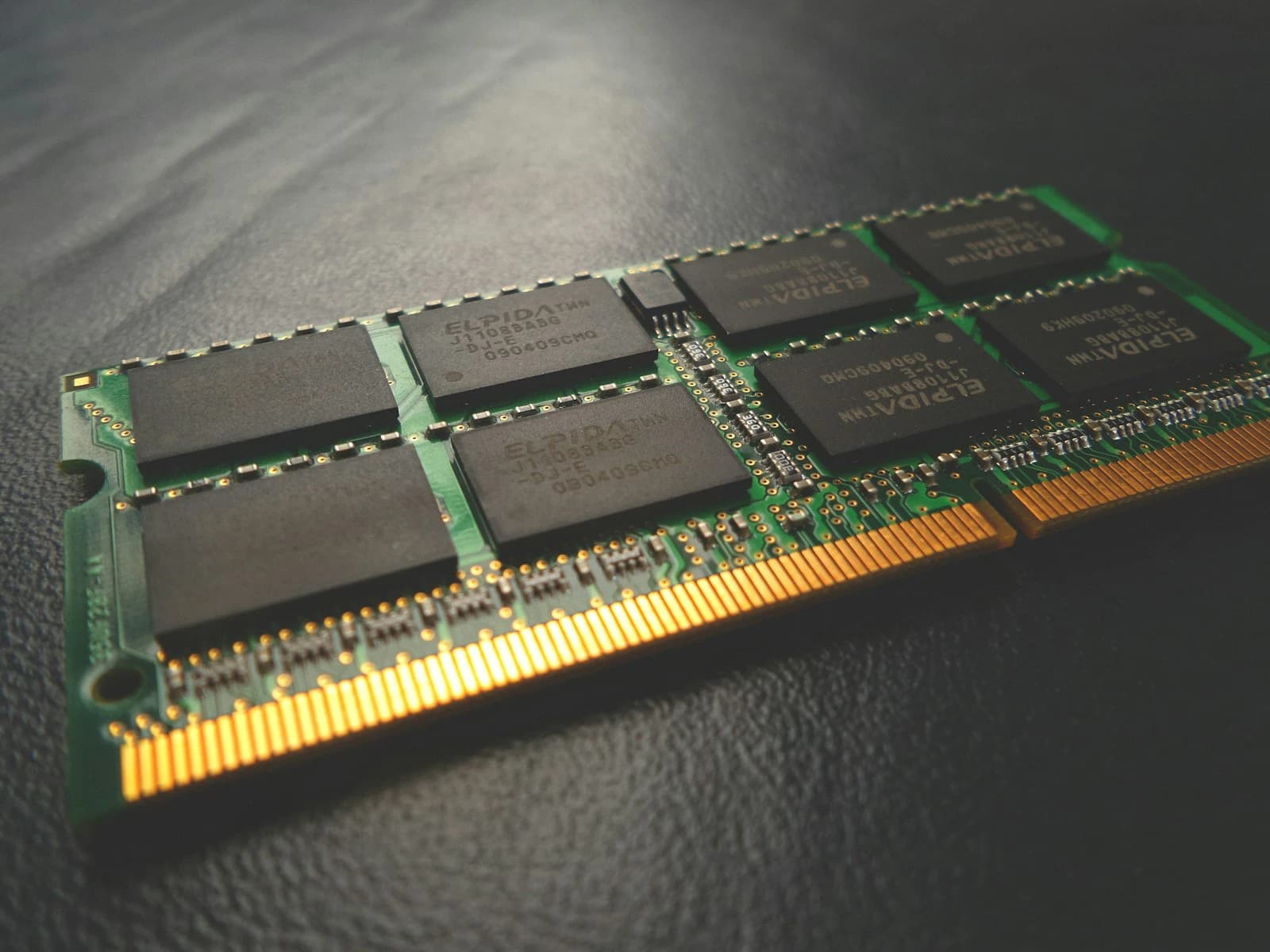
Two things send people searching for Mac memory help. One is curiosity, or alarm, after opening Activity Monitor and seeing that almost all their RAM is "used." The other is a grey window that says "Your system has run out of application memory" and asks you to force quit apps. The first is usually nothing to worry about. The second always has a cause, and it's often not the one people expect.
Quick answer: Open Activity Monitor (⌘Space, type "Activity Monitor") and click the Memory tab. Ignore how full "Memory Used" looks and check the Memory Pressure graph: green is fine, yellow means you're running short, red means you need more RAM than you have. The "run out of application memory" error usually means an app is leaking memory, or your startup disk is so full that macOS can't use swap. Quit the app at the top of the Memory column, free up disk space, and restart. MacCove Space shows memory and CPU use by app over time, so a leaking app is easy to spot.
How to check memory usage on a Mac
Open Activity Monitor from Applications → Utilities, or with Spotlight.
Click the Memory tab.
Click the Memory column header to sort processes by how much memory they use.
Look at the panel at the bottom of the window.
Here's what each number in that panel means:
| Field | What it means | Should you worry? |
|---|---|---|
| Memory Pressure | How well your RAM is meeting demand, based on free memory, swap, wired memory and cached files | This is the one to watch |
| Physical Memory | The RAM installed in your Mac | No; it's fixed |
| Memory Used | RAM currently in use by apps and macOS | No. Near-full is normal |
| App Memory | Memory used by apps and their processes | Only if one app is using a surprising amount |
| Wired Memory | Memory that must stay in RAM and can't be compressed or swapped | Rarely |
| Compressed | Inactive memory macOS has compressed to make room | A little is normal; a lot means you're short of RAM |
| Cached Files | Recently used files kept in spare RAM to speed things up; given up instantly when apps need it | No. This is free memory doing useful work |
| Swap Used | Memory written out to the startup disk because RAM was full | A few GB is fine; large and growing means you're short |
Why "almost full" RAM is normal on a Mac
macOS treats empty RAM as wasted RAM. It fills spare memory with cached files so apps and documents open faster, and hands that memory back immediately when an app needs it. It also compresses memory that apps aren't actively using before it resorts to swap. Apple's own guidance is that having free memory doesn't, by itself, improve performance.
So a Mac showing 15GB of 16GB used, with green memory pressure, is working exactly as designed.
| Memory Pressure | What it means | What to do |
|---|---|---|
| Green | RAM is being used efficiently | Nothing |
| Yellow | Your Mac may eventually need more RAM | Quit apps and tabs you aren't using |
| Red | Your Mac needs more RAM | Quit heavy apps now; consider more RAM when you next buy a Mac |
What "Your system has run out of application memory" means
This message appears when macOS can no longer find room for what apps are asking for, in RAM, in compressed memory or in swap. It then opens the Force Quit window and asks you to choose an app to quit.
The usual causes:
| Cause | How to spot it | Fix |
|---|---|---|
| An app with a memory leak | One app in Activity Monitor using tens of gigabytes, and growing | Quit it, update it, and report the bug if it keeps happening |
| Startup disk nearly full | Less than 10–20GB free in Storage settings | Free up disk space so macOS can use swap |
| Too many heavy apps and tabs | Many apps each using a few GB, pressure in the red | Quit what you aren't using; close browser tabs |
| A bug in macOS itself | Apple apps or system processes using huge amounts after an update | Install the latest update; restart regularly until it's fixed |
The second cause catches many people out. When RAM is full, macOS writes memory to disk as swap. If the disk is almost full, there's nowhere to put it, so the Mac runs out of "memory" even though the real problem is storage. Freeing up disk space often makes the error disappear. See how to free up disk space on a Mac.
Memory leaks also happen in Apple's own software. After macOS Tahoe's release, for example, users reported apps such as Calculator and Pages growing to tens of gigabytes. If an Apple app or system process is the culprit, keep macOS updated, because these bugs tend to be fixed in point releases.
How to free up RAM on a Mac
In order of usefulness:
Quit the biggest app you're not using. In Activity Monitor, sort by Memory, select the app and click ✕. Choose Quit, not Force Quit, unless it's frozen.
Close browser tabs. Each tab runs as its own process, and web apps like Google Sheets, Figma and Slack can each take more than a gigabyte.
Restart your Mac. This clears leaks, empties swap and resets everything. If you only ever sleep your Mac, a weekly restart helps a lot.
Trim login items so fewer apps run in the background from the moment you log in: System Settings → General → Login Items & Extensions.
Free up disk space, so macOS has room for swap when it needs it.
MacCove Space shows memory and CPU usage by process alongside live trends, so you can see which app is responsible at a glance and quit runaway processes from the same window.
Do RAM cleaner apps work?
Mostly not. Many "memory cleaners" do roughly what the Terminal command sudo purge does: they flush the file cache from RAM. That makes the free-memory number go up, but it throws away exactly the cached data that was making your Mac fast. macOS then has to read those files from disk again. It doesn't touch memory that apps are actively using, so it doesn't fix a leaking app either.
The things that actually free memory are the ones above: quitting the app that's using it, or restarting.
When you actually need more RAM
If memory pressure is yellow or red during your normal work, not just when something is leaking, and Swap Used regularly runs into many gigabytes, your Mac genuinely needs more memory. On Apple silicon Macs, memory is part of the chip and can't be upgraded later, so this is a decision for your next purchase.
| Your typical work | Comfortable RAM |
|---|---|
| Browsing, email, documents, streaming | 16GB |
| Lots of tabs plus Office, Slack and video calls | 16–24GB |
| Photo editing, music production, light development | 24–32GB |
| 4K+ video, large codebases, virtual machines, local AI models | 36GB or more |
FAQs
How do I see how much RAM my Mac has?
Choose Apple menu → About This Mac. The Memory line shows the installed RAM.
Is 8GB of RAM enough for a Mac?
For light use, it works, but it leaves little headroom. With several apps and many browser tabs open, 8GB Macs often hit yellow memory pressure and rely heavily on swap.
Does swap damage my Mac's SSD?
Swap writes to the SSD, and constant heavy swap adds wear over time. For normal use it isn't a concern. If your Mac swaps heavily every day, that's another sign you need more RAM.
Why is kernel_task using so much memory?
kernel_task is macOS itself, including drivers and system caches. Some memory use is normal. High CPU use by kernel_task is more often about heat. See why your Mac is running slow.
How do I fix the application memory error permanently?
Find which app is growing out of control and update or replace it, keep plenty of disk space free, and restart regularly. If it happens with only light use, your Mac may simply not have enough RAM for your workload.
Related guides
Why Is My Mac Running Slow?
How to Free Up Disk Space on a Mac
Does a Mac Need Antivirus?